The new Image Overlay, and a steadier editor
What's new in Beadloo
Image Overlay has been rebuilt. Put a photo or a drawing over your pattern and it now lands on whole beads, sizes itself to the pattern in one tap, turns to any angle, and previews about five times faster. Before you press Apply, an outline shows exactly which beads will be painted. This update also makes the editor steadier: saving never interrupts your work, changing the start corner keeps your drawing, and Undo goes all the way back.
- Lands on whole beads
- Snap to grid
- Size in beads
- Fit, Fill, Stretch, Center
- Turn to any angle
- 5× faster preview
- Outline of what Apply paints
- Phone controls beside the canvas
- Start corner keeps your drawing
- Steadier saving
- Instant project previews

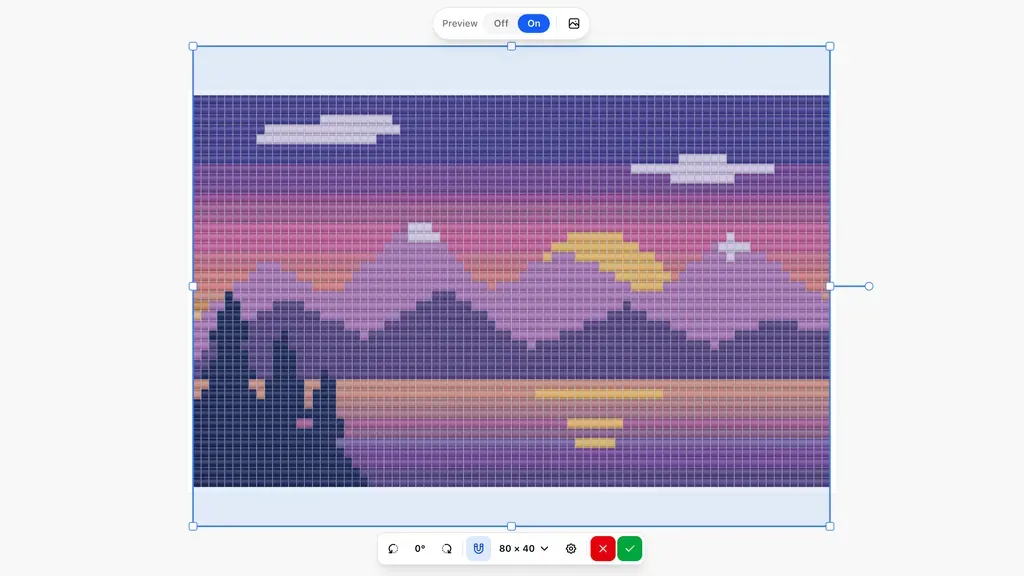
The picture: a drawing of a sunset over a lake.
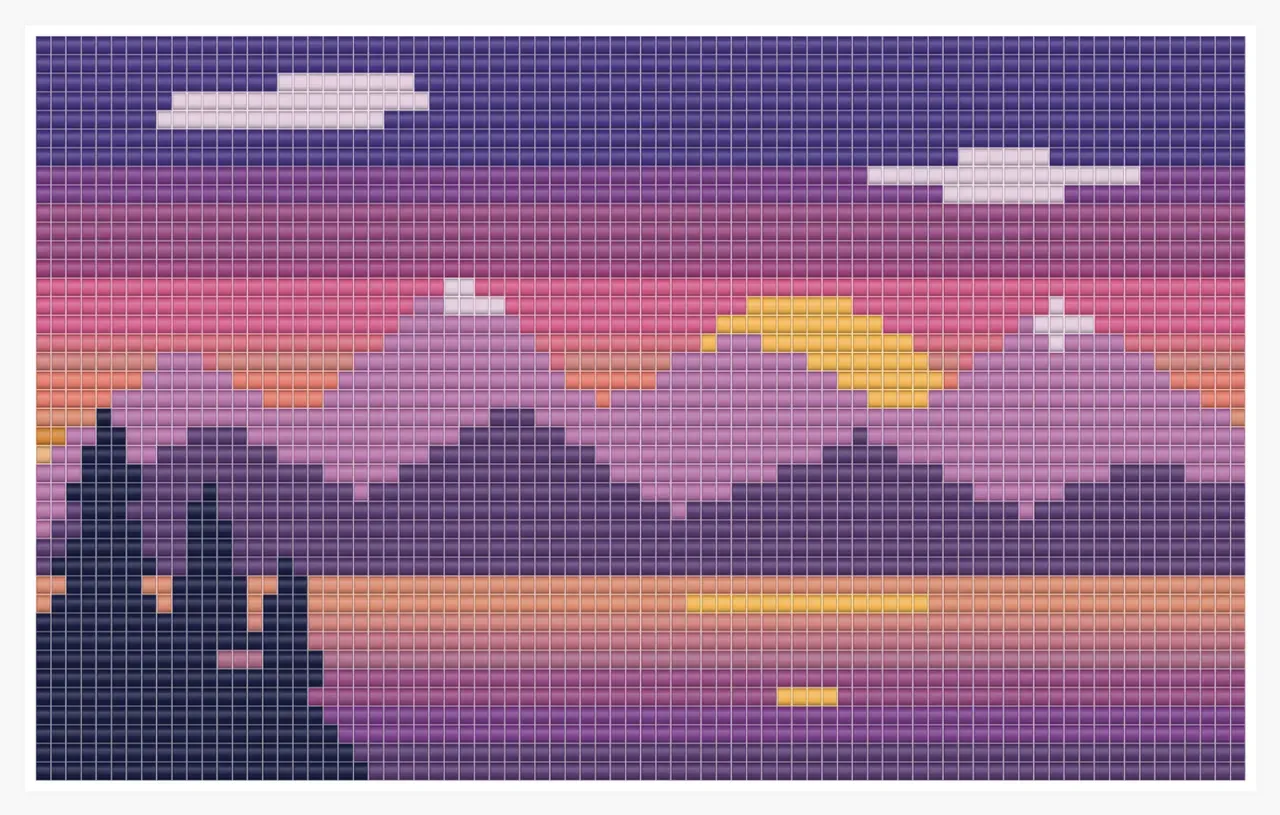
The pattern, after Apply: 80 × 40 Delica beads.
In this update
What's new at a glance
- Lands on whole beads
A new picture fits inside your pattern, and Snap to grid keeps every move on whole beads. - Size it in one tap
The Size button shows the size in beads and fits, fills, stretches or centers the picture. - Turn it any way
Drag the rotate handle or pick an angle; a button shows it to the degree. - Preview when you're ready
Preview is a switch you turn on, about five times faster, with Show original to compare. - See what Apply will paint
An outline marks the beads the picture covers, and the rest of the picture fades. - Lines it catches on
With Snap to grid off, the picture catches on the pattern's edges and center lines. - Apply paints what you see
A turned picture paints as shown, and transparent parts are left alone. - Controls that stay out of the way
On a phone they sit beside the canvas; elsewhere they never cover each other or the picture you drag. - Saving never interrupts you
A save happens quietly in the background, and a slow connection no longer replaces the editor with an error. - Start corner keeps your drawing
Change where you start beading and your shapes stay the same, half a bead over. - Selections that match the beads
After a duplicate is flipped or turned, the selection and its outline are exactly the copy. - Also in this update
Undo across a change of stitch, Craft ticks on peyote, pens on tablets, smoother pan and zoom, instant project previews. - Fixes
Quarter turns that keep their size, herringbone's last column, pictures picked on a phone held sideways, and more.
Nothing changes until you apply
Placing, sizing, turning and previewing only move the picture. Your pattern changes when you press Apply, and a single undo takes it all back.
Image Overlay
Lands on whole beads
Choose Image Overlay in the Tools bar and add a picture. It now arrives at the largest size that fits inside your pattern on whole beads, at the pattern's top-left corner, or at the first bead in view when you are zoomed in. It used to arrive at the same fixed size whatever the pattern.
Snap to grid, on the bar below the picture, keeps every drag, resize and quarter turn on whole beads, so the picture's edges follow the rows. It is on to start with, and it lines up with shifted peyote and brick patterns too.
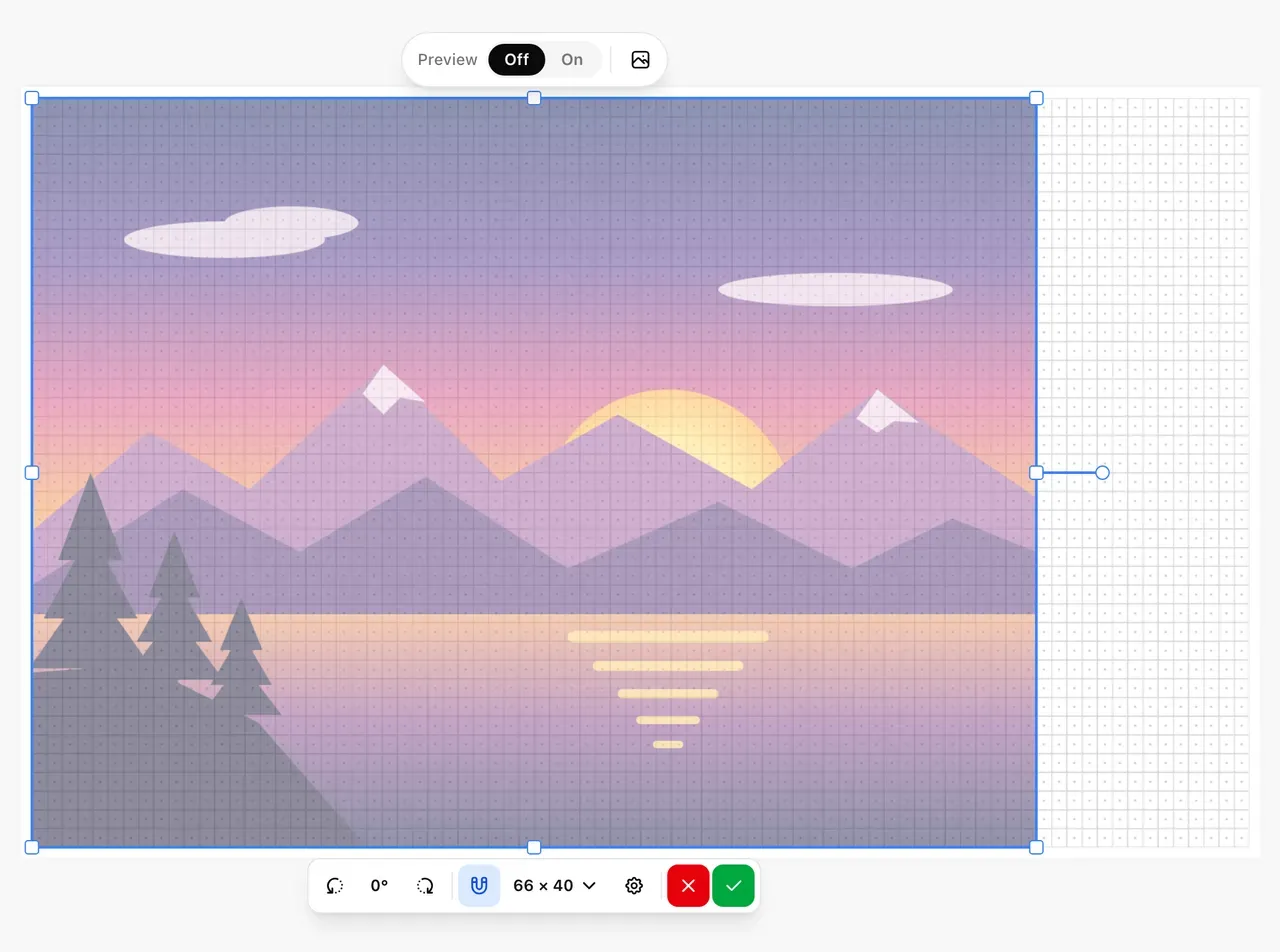
Just added: the picture fills the pattern's height on whole beads, from the top-left corner. Preview is off.
Size it in one tap
Next to Snap to grid, the Size button shows how many beads of your pattern the picture covers, such as 66 × 40, and follows along while you drag a corner. On a phone the button is an icon, and the size is the first line of its menu, together with the size in centimeters or inches.
Open it to place the picture in one tap:
- Fit to pattern: the whole picture inside the pattern, in its own proportions.
- Fill pattern: the pattern covered from edge to edge, in the picture's own proportions. Whatever hangs over the edge is left out.
- Stretch to pattern: the picture stretched to exactly the size of the pattern. This turns Lock proportions off.
- Center on pattern: the same size, moved to the middle.
- 1 pixel = 1 bead: each pixel of the picture becomes one bead. It is listed when the picture is small enough for that.
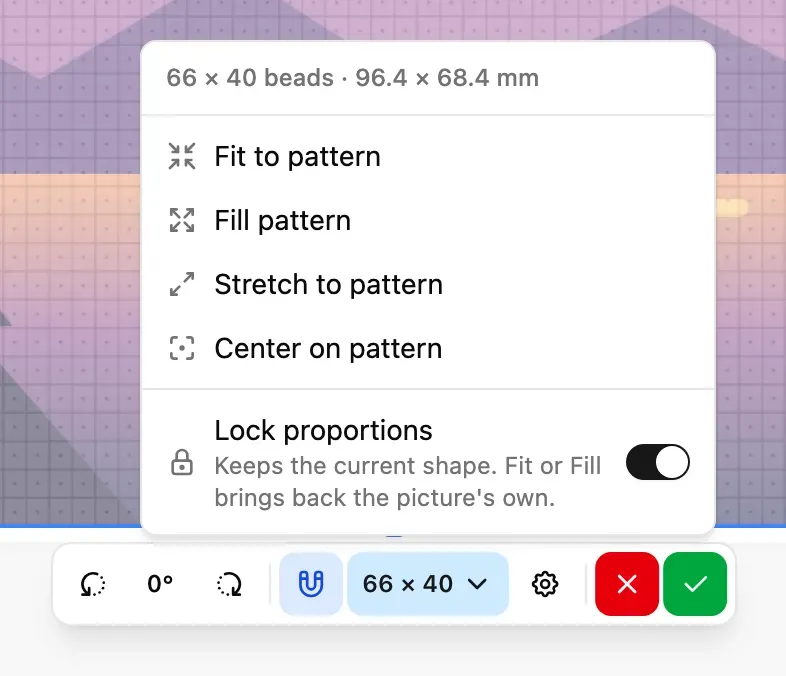
The Size menu. Its first line is the size in beads and in millimeters.
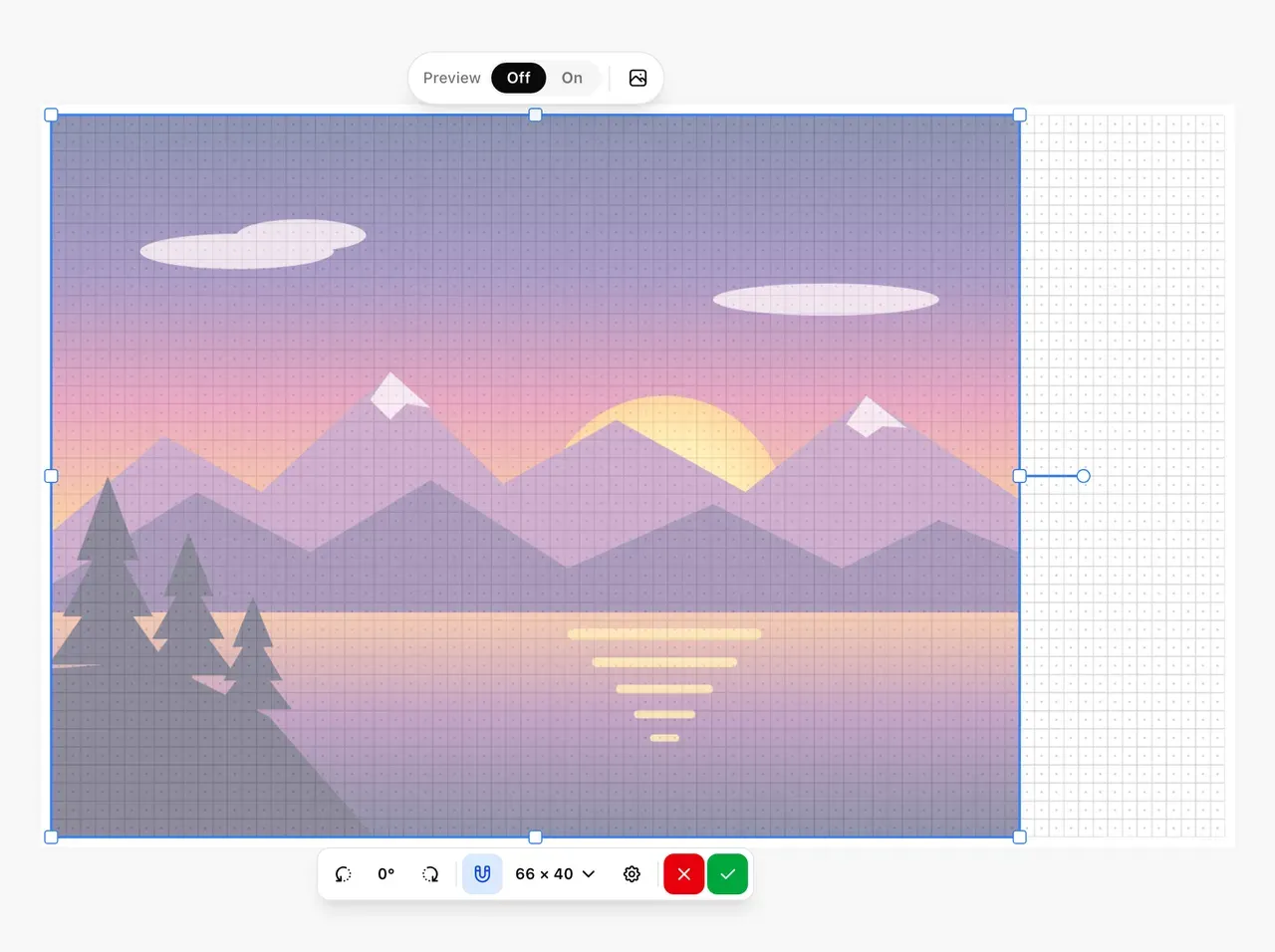
Fit to pattern: all of the picture, 66 × 40.
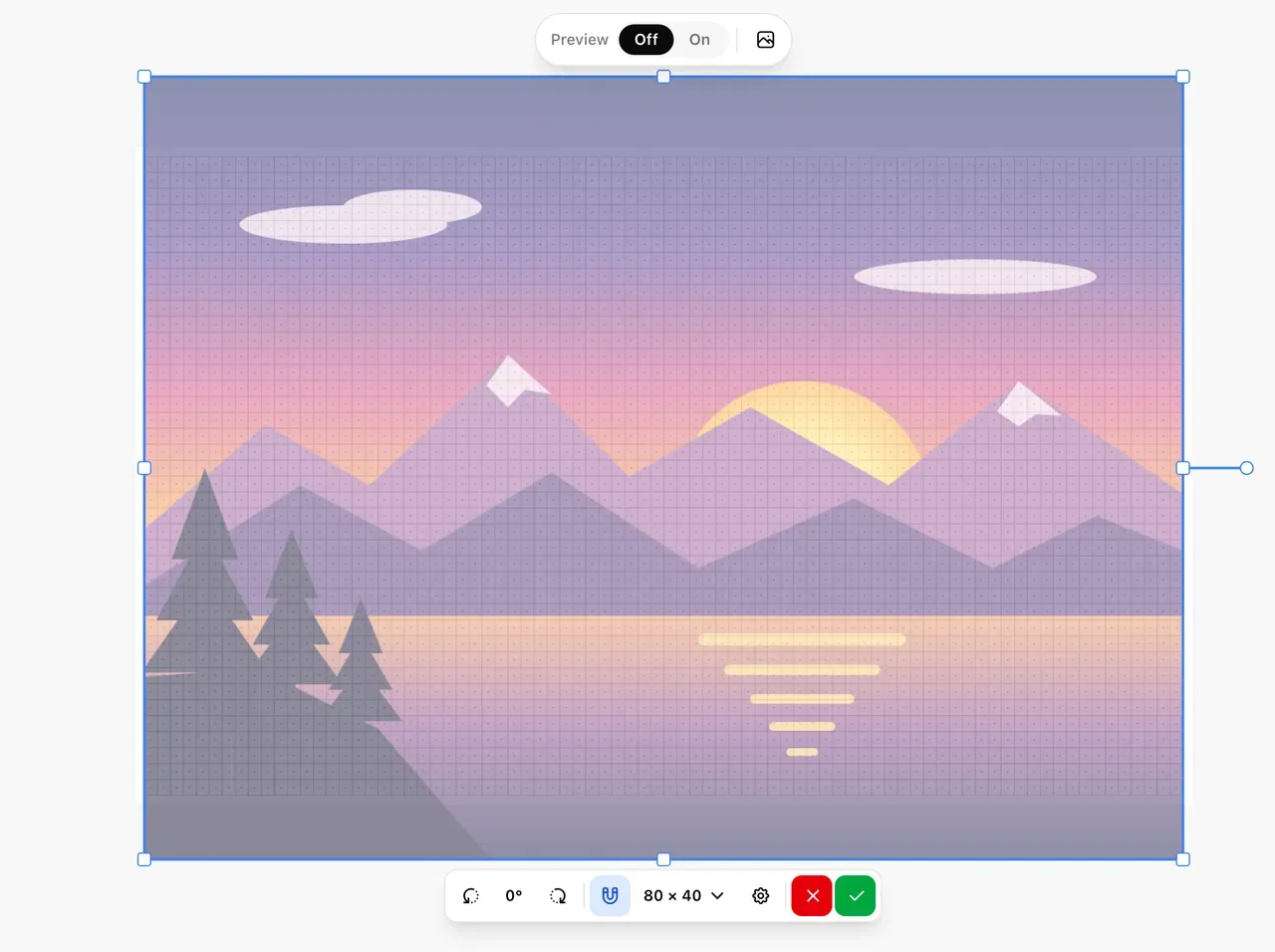
Fill pattern: all of the pattern, 80 × 40. The top and bottom hang over.
Lock proportions has moved from Settings into this menu. Turning it back on keeps the shape the picture has now; Fit and Fill always bring back the picture's own proportions, so they also undo a stretch. A turned picture reads as "≈ 78 × 40", because its corners reach beads it does not cover, and offers Fit, Fill and Center until you straighten it.
When a Size choice leaves part of the picture off screen, the view zooms out just far enough to show all of it. It never zooms in. While you drag or resize, the view only scrolls, and it no longer races off when the picture is bigger than the screen. A resize now stops at three times the size that fills the pattern.
Turn it any way
Drag the rotate handle to turn the picture freely; it catches every 45° on the way. Rotate left and Rotate right turn it a quarter at a time. Between them, a new button shows the angle to the degree, such as 18°, counted clockwise from the way you added it, and follows along while you drag.
Open that button to pick any 45° step, or Reset rotation. At 90°, 180° or 270° the picture is upright again, so every Size choice is back.
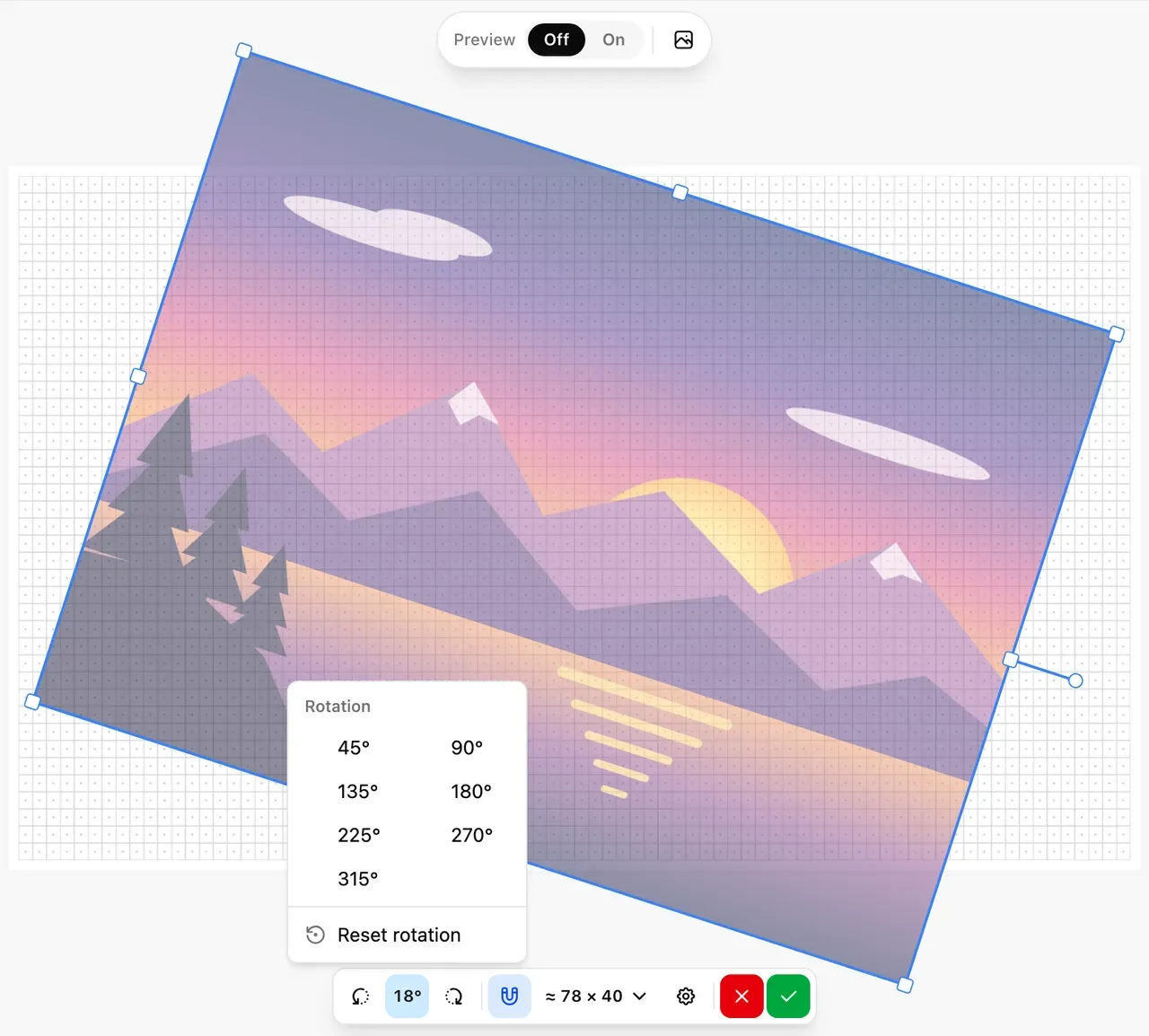
Turned 18° with the rotate handle. The Rotation menu offers 45° steps and Reset rotation.
Preview when you're ready
The bar above the picture holds Preview, with Off and On. Preview no longer switches itself on: turn it on to see the picture as beads. Show original brings the picture back for a moment to compare: hold it down with a mouse, or tap it on a touch screen and tap again to go back.
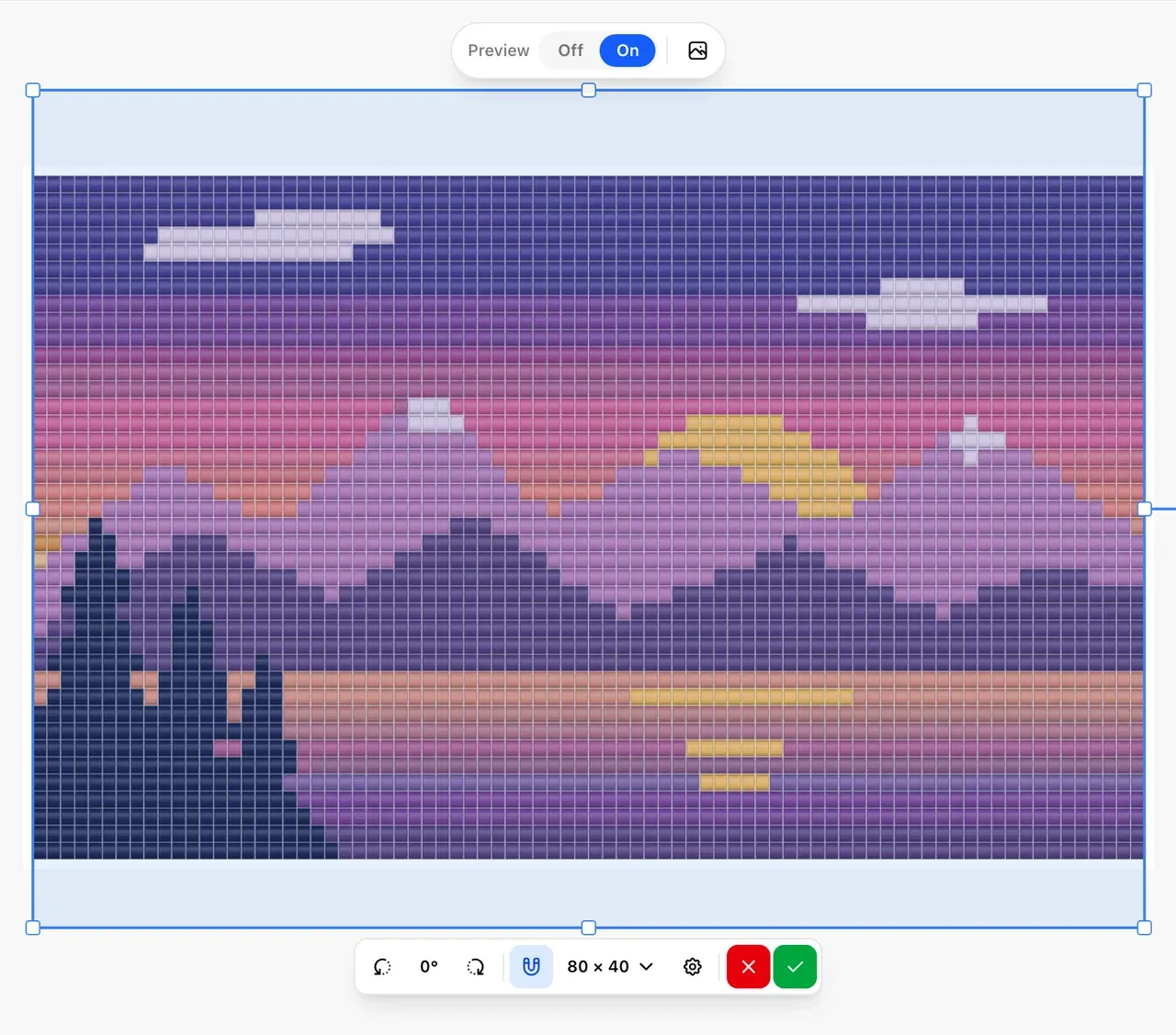
Preview on, after Fill pattern. For a drawing with soft color changes like this one, Photo with Max Colors at 30 in Settings gives the smoothest sky.
Previewing is about five times faster on a large pattern with a photo, and so is every redraw after you move, turn or resize the picture, and Apply itself. While it works, a small spinner shows in the middle of the picture, so you can tell it is busy rather than stuck. A quick redraw is done before the spinner appears.
To get there, colors are now matched to beads in small groups of near-identical shades. In rare cases, a spot that falls exactly between two almost identical beads may now get the other one.
See what Apply will paint
While the picture is over your pattern, an outline now marks exactly the beads it covers, and the part of the picture outside those beads fades. What is inside the outline is what Apply will paint, on every stitch, including the shifted rows of brick and the dropped columns of peyote. The outline follows along while you drag, resize or turn the picture. Show original takes the fade off for a moment.
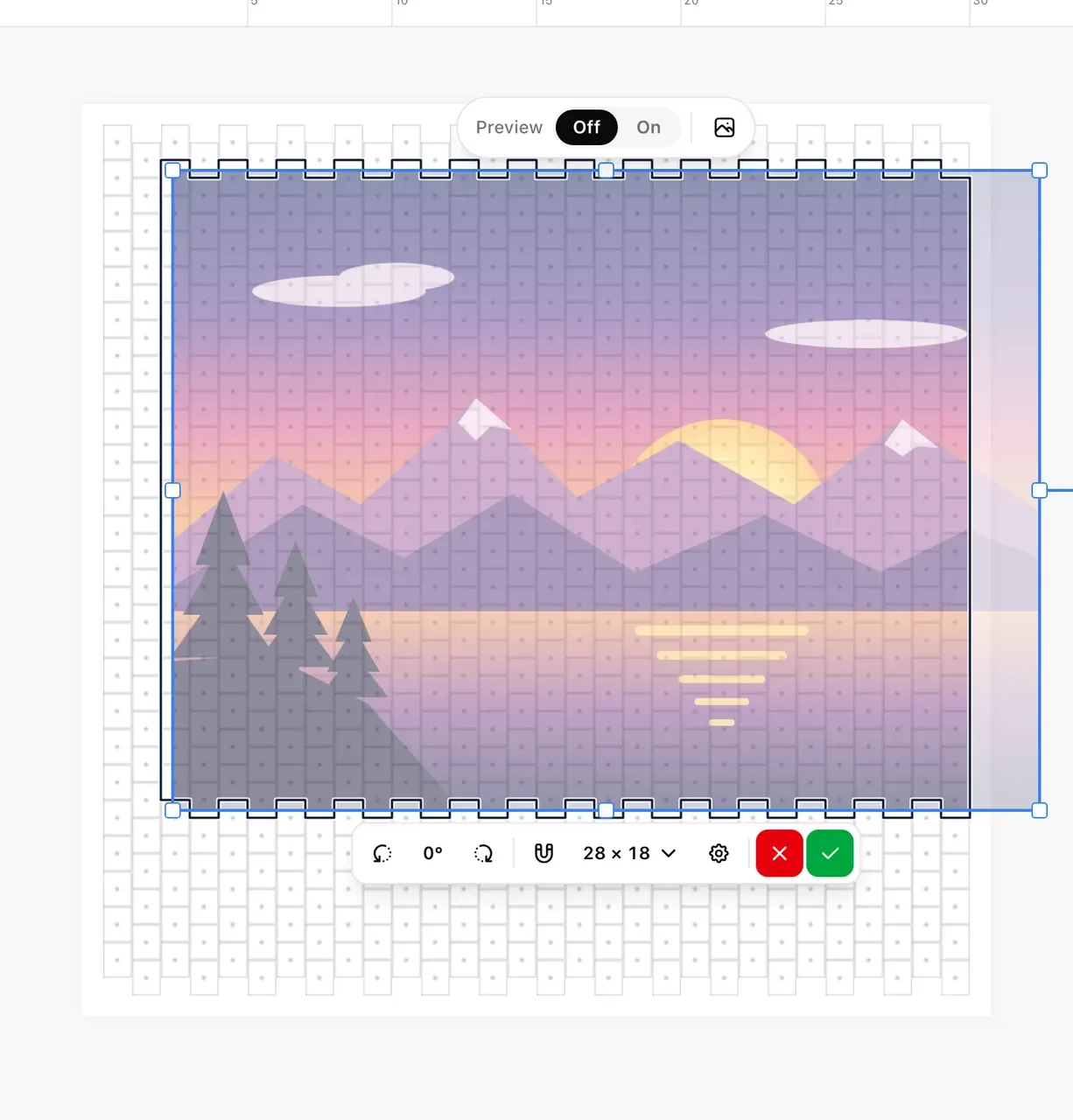
The outline is the beads Apply will paint: 28 × 18 here. The part of the picture that hangs over the pattern's edge is faded.
Lines it catches on
Turn Snap to grid off to place the picture freely. As you drag or resize it, it now catches on the pattern's edges and on its center lines when it comes close, and a guide line shows what it has lined up with. With Snap to grid on, the picture stays on whole beads as before, and the guide lines still show when it is centered or flush with an edge.
Apply paints what you see
- A turned picture paints as shown, at its angle.
- Transparent parts are left alone. They used to be painted black. A bead is painted when its center is under the picture, which is exactly what the outline shows.
- Nothing left on top. Apply ends the overlay. The faded copy of the picture that used to stay over your pattern is gone.
- Use only Project Palette replaces "Use only My Favorite Colors" in Settings. It matches the picture to the colors your Project Palette lists, the ones you added and the ones already on the pattern, and needs at least six of them.
Phone, tablet and computer
Controls that stay out of the way
On a phone, Image Overlay's controls no longer float over the picture. They take the place of the drawing tools: two rows at the bottom of the screen when you hold the phone upright, and two columns down the right edge when you hold it sideways. The buttons are icons with finger-sized targets, and Preview is an eye, shut when it is off and open when it is on. The same place holds Fit pattern to screen, Reset zoom to 1:1 and the pattern alignment. Held sideways, Rotate left and Rotate right move into the rotation menu, where there is room for them.
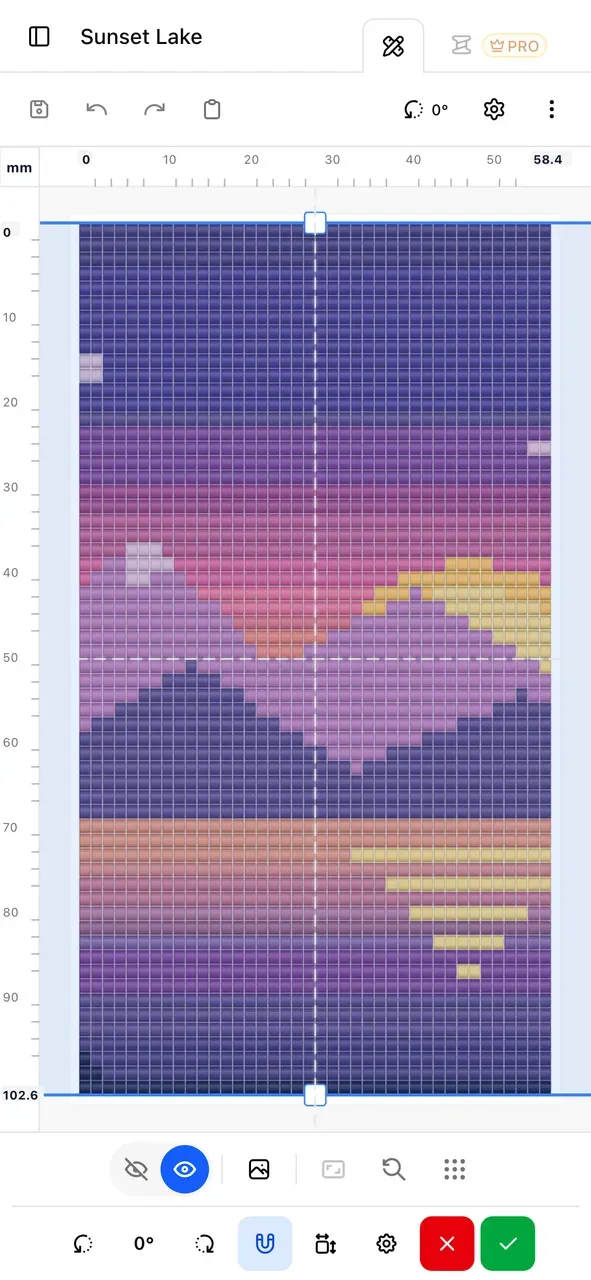
Upright: Preview above the actions, at the foot of the screen.
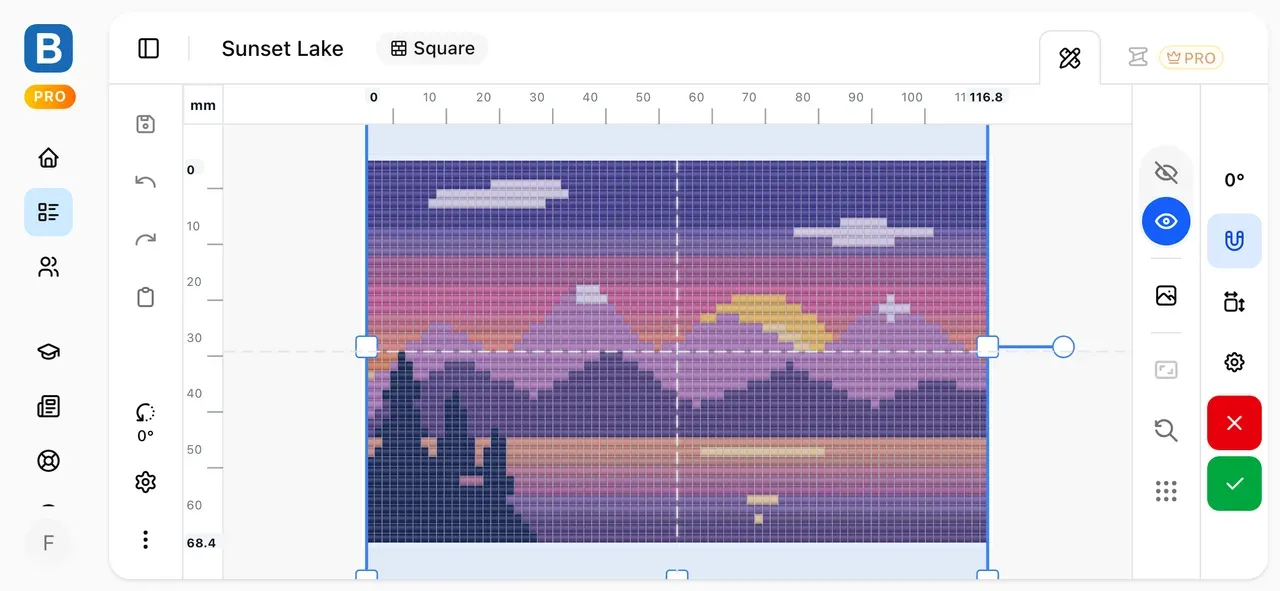
Sideways: two columns down the right edge.
On a computer or tablet, the bar above the picture and the bar below it no longer land on top of each other. When there is not enough room for both, they share one row, or move to the top and bottom of the screen. Both step aside while you drag the picture.
On a touch screen, the resize handles have larger finger targets. Around a small picture they stay small enough that a drag on the picture still moves it.
The editor
Saving never interrupts you
Your pattern is saved in the background as you work. Until now, each of those saves also reloaded the editor behind the scenes, and when the connection was slow that reload could fail and replace the editor with an error page, even though your work had been saved.
- A save is now just a save. Nothing on screen is reloaded, so the view, the tool and the color you are using stay exactly as they are.
- A save that fails tries again by itself, and the editor stays open with your work in it.
- If a page really cannot load, you now get a clear message with Try again and Reload page instead of a blank error.
- Back, Forward and turning your phone open the pattern as you left it, including a bead you painted a moment before.
Start corner keeps your drawing
The start corner (in Pattern settings, and in the status bar) says where you begin beading. On peyote and brick, each corner needs its own stagger, and changing the corner used to leave your beads in their old cells, so diagonals and curves came out jagged.
Now the drawing moves with the stagger: your shapes stay exactly as you drew them, half a bead over, and the corner you chose is a real place to start. Changing back returns every bead to where it was, and one Undo takes back the corner and the beads together.
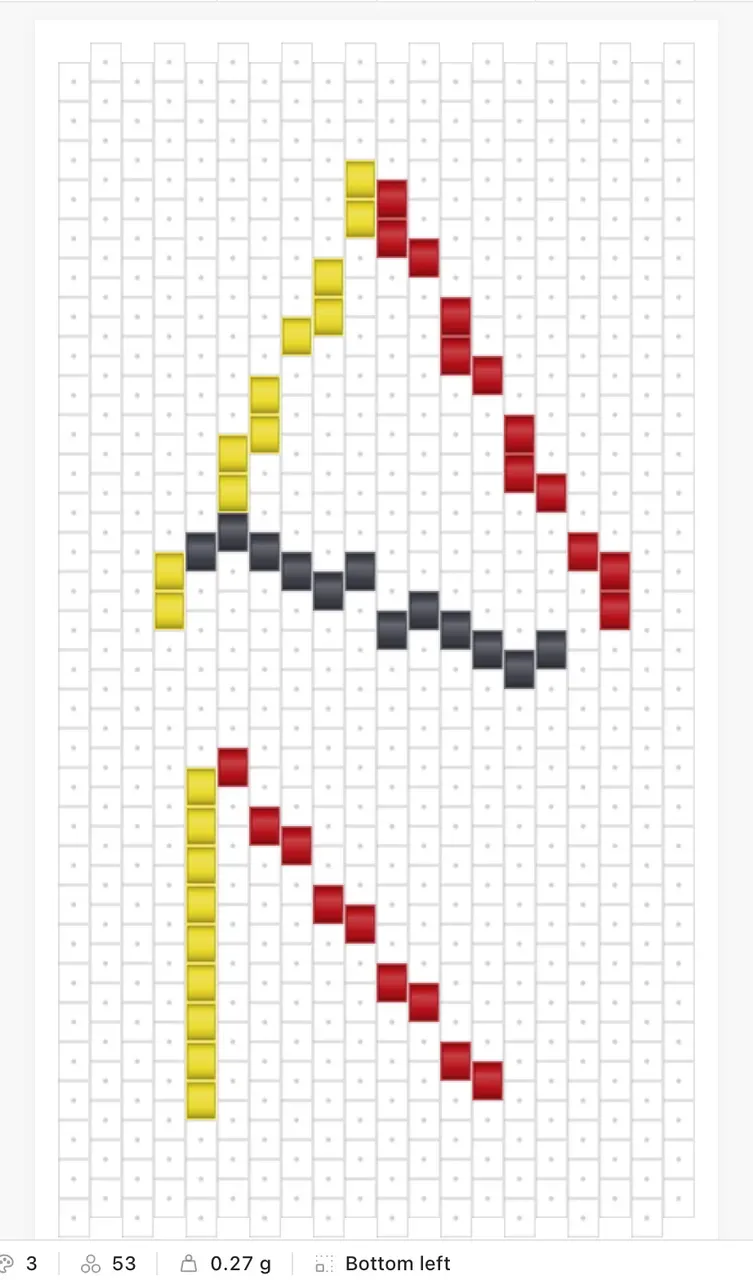
Drawn from the bottom left.
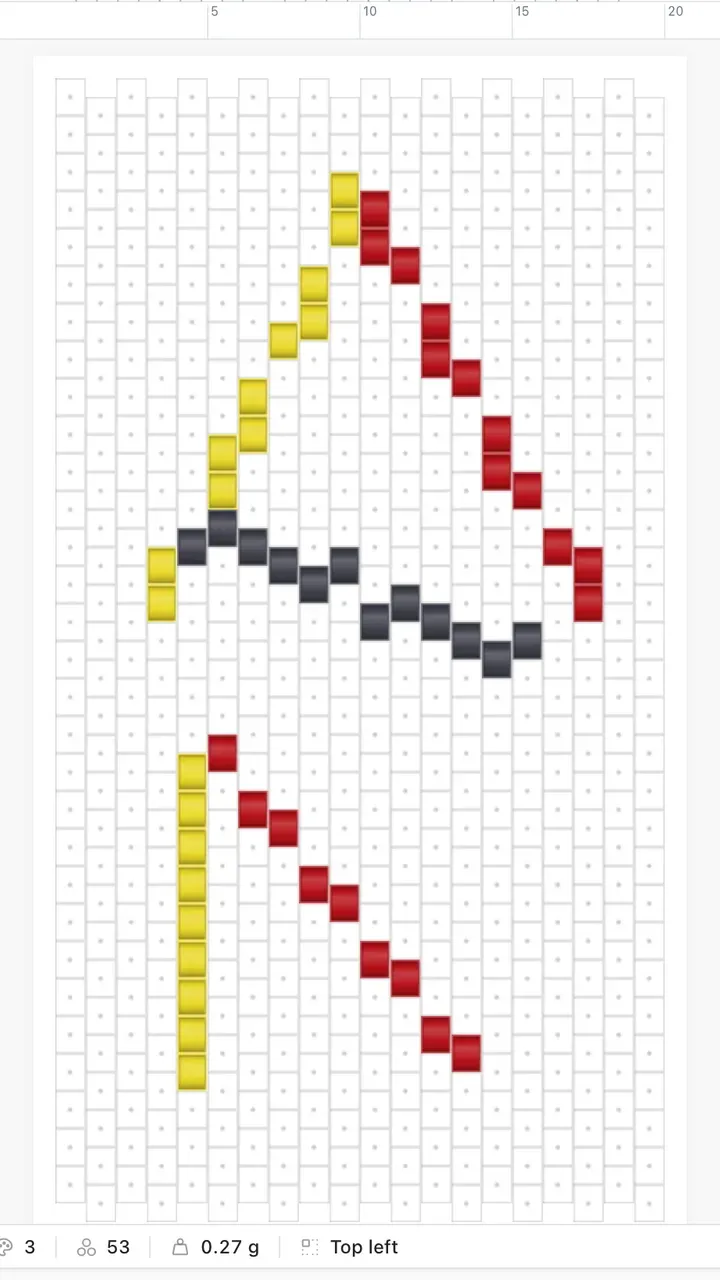
After changing to top left: the same shapes, on the new stagger.
When a pattern is drawn right up to its edges
The drawing has to move half a bead, so on a pattern with no empty margin a few beads at one edge have nowhere to go. Beadloo tells you how many and offers Undo right there.
Selections that match the beads
Duplicate part of a pattern with the polygon tool, flip or turn the copy, and place it: the selection you are left with is now exactly the copy, on every stitch, so the next duplicate, move or cut takes the right beads. Its moving outline follows the beads themselves instead of a box around them. Magic wand selections are outlined the same way.
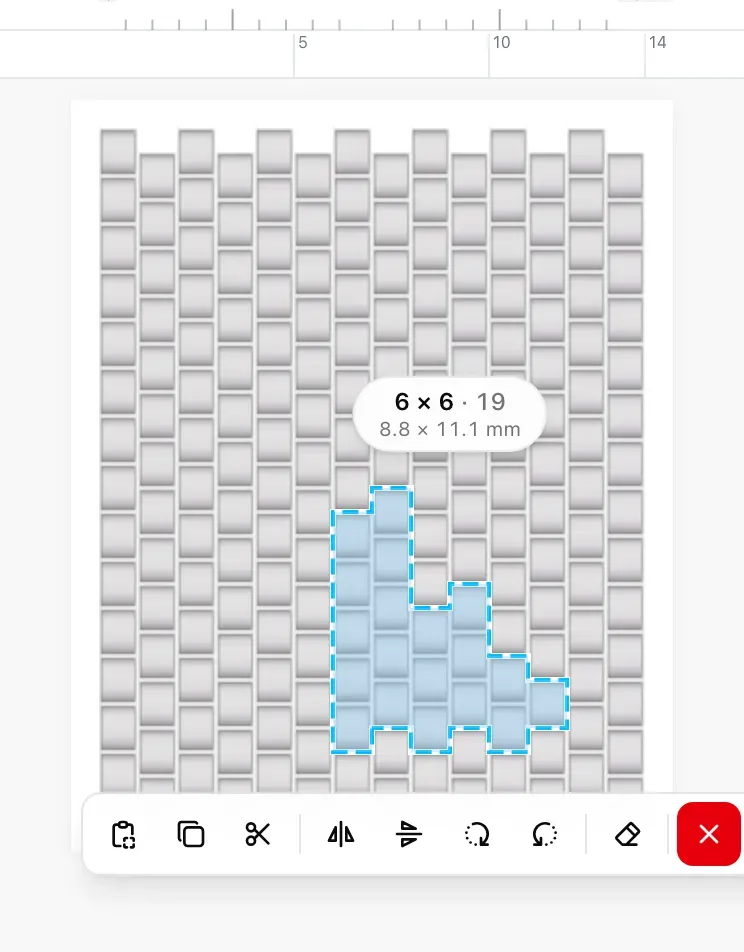
The outline runs round the selected beads, not a box around them.
Everywhere else
Also in this update
-
Undo all the way back. After changing the stitch (peyote to brick, for example), Undo could stop at the change and do nothing more. It now goes back through every step, before and after.
-
Craft mode ticks on peyote. The check marks for finished beads now sit on the beads, including the half-row inside the frame of the row you are working on, from any start corner.
-
Pens on tablets. Some Bluetooth pens send scroll signals on their own, which made the pattern jump while you drew or even while you did nothing. The editor now ignores them.
-
Smoother pan and zoom. Panning and zooming a large pattern does much less work on every frame, and the zoom slider zooms live as you drag it.
-
Steadier pinch on tablets. Pinching right after a pen stroke on an earring pattern no longer makes the canvas glide back and then jump again.
-
Zoom in the Pattern Preview. The preview has its own zoom: pinch, drag, double tap, the mouse wheel or a trackpad, and Fit to window to go back. On a tablet the page around it no longer zooms and flickers.
-
Project previews at once. On the Dashboard and the Projects page, previews you have seen before come straight from your browser on the next visit. A new preview shows as soon as it is drawn, and the Dashboard no longer shows the old one when you open it right after editing.
-
Faster log out. Logging out no longer pauses for a few seconds; the menu shows "Logging out…" until you are out.
-
Safer autosave. A stroke drawn just before you leave the editor is kept, a large pattern is saved when you switch tabs, and a save that fails tries again on its own.
Fixes
- Quarter turns keep their size. On brick and herringbone, turning a picture a quarter turn and back could leave it a few beads smaller, such as 20 × 24 coming back as 20 × 21. It now comes back exactly as it was.
- Herringbone's last column. A picture added to a herringbone pattern now reaches the last column, instead of stopping one short.
- A picture picked on a phone held sideways. Choosing a photo while the phone was sideways could lose it when the photo picker turned the screen. It now arrives.
- More tools on a phone held sideways. The strip of extra tools no longer covers the tool buttons beside it.
- A bead painted again after Undo. Painting, undoing, and painting the same bead again while the first save was still on its way could lose that bead. It is kept.
- Duplicating on a slow connection. The copy now shows in your list, instead of the card staying on "Duplicating…".
- Settings that stay put. A change on the Settings page could occasionally jump back to its old value. It now stays.
- Read-only projects. The latest-project card on the Dashboard no longer offers to rename a project you can only view.
Try it now
Open a pattern, choose Image Overlay, add a photo and pick Fit to pattern from the Size button. Turn Preview on, and press Apply when it looks right. We would love to see what you turn into beads.
Comments
Sign in to join the conversation.
No comments yet. Start the conversation.