Release 1.2.3 - Copy beads from one pattern into another
A clipboard that travels between your projects: copy any selection, open another pattern, paste, and Beadloo matches the beads for you.
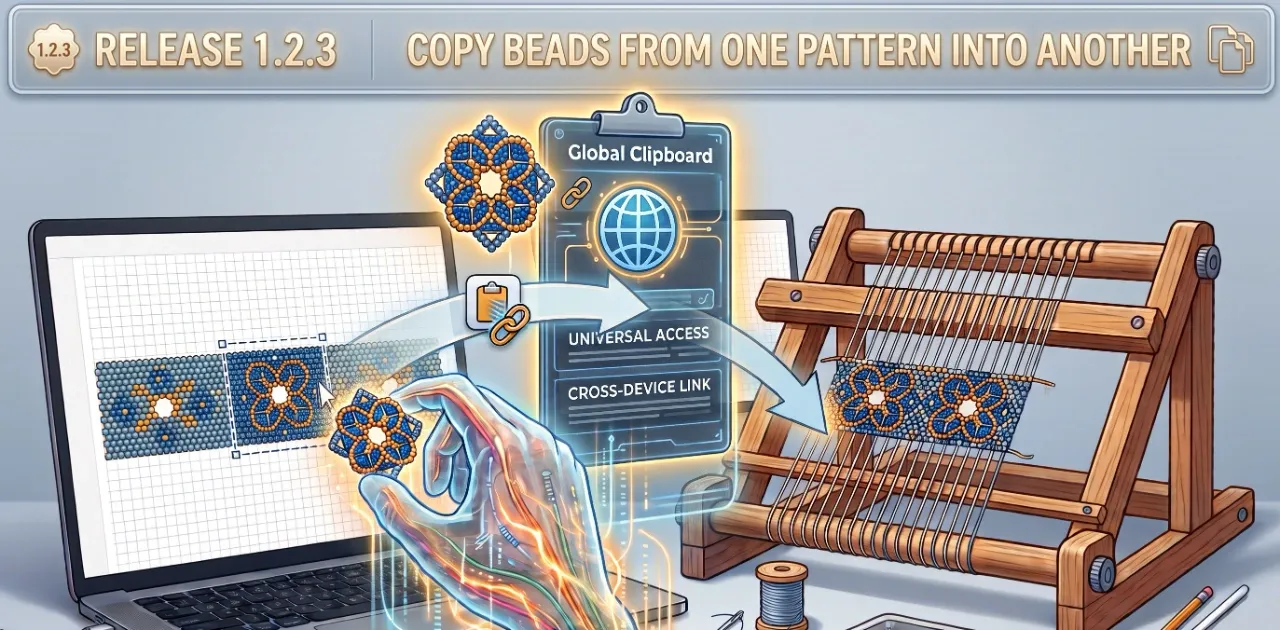
Every beader has a motif they keep coming back to. A border that frames everything. A leaf you drew once and never quite managed to redraw the same way. A colour run that just works. Until now, moving one of those from one Beadloo pattern into another meant redrawing it bead by bead, or keeping a "scraps" project open in a second tab and squinting between them.
This release adds a clipboard that follows you between projects. Copy a section here, open another pattern, paste it there. That is the whole idea, and the rest of this post is about the small details that make it feel natural.
Copy in one pattern, paste in another
Select any area of your pattern, copy it, and it stays on your clipboard while you move around Beadloo. Open a different project, press paste, and the beads appear right in the middle of your view, floating, ready to be dragged into place.
Your clipboard holds one section at a time. Copying something new replaces what was there before, the same way your computer's clipboard works.
How to copy
There are a few ways to copy, so pick whichever fits how you work:
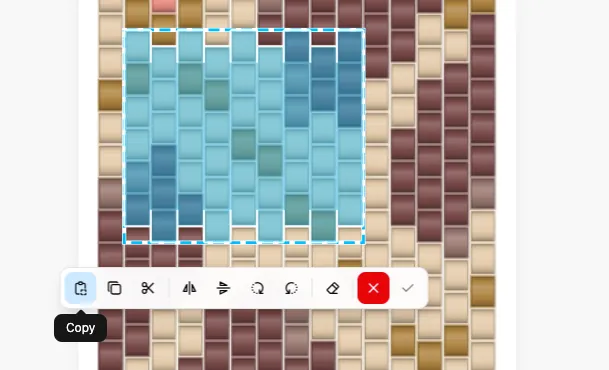
- From the selection bar. Select an area with the marquee, magic wand or polygon tool. The bar that appears over your selection now starts with a Copy button, right before Duplicate.
- From the Tools panel. Next to undo and redo you will find a Copy selection button. It lights up whenever something is selected.
- With the keyboard. Press Ctrl+C on Windows, or ⌘C on a Mac, while an area is selected.
- By cutting. Cut now puts the beads on your clipboard as well, so a section you lift out of one pattern can land in another.
A short message confirms what you copied, for example "Copied 12×8 beads to the clipboard". On a phone, Copy sits in the same tray as Duplicate and Cut.
How to paste
Open the pattern you want to paste into, then either press Ctrl+V (⌘V on a Mac) or use the Clipboard button.
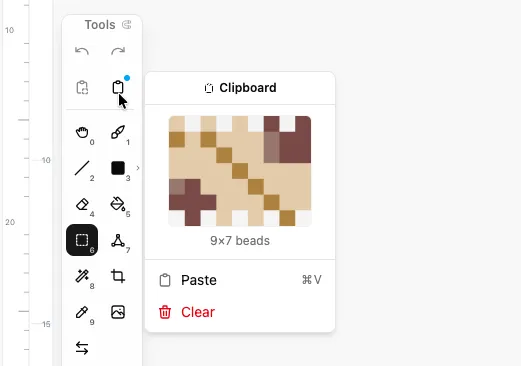
The Clipboard button lives beside undo and redo, in the Tools panel on a computer and in the top toolbar on a phone. A small dot on its icon tells you it is holding something. On a computer, hovering over it shows a thumbnail of the copied beads and the name of the project they came from, so you never have to guess what is on there. Tap or click it and you get the same thumbnail plus two choices: Paste and Clear.
Once you paste, the beads float over your pattern:
- Drag the block to where you want it.
- Press Enter or the check mark to place it.
- Press Escape or the cross to change your mind. Nothing is touched until you confirm.
It is the same drag-and-confirm flow you already use for Duplicate and Cut, so there is nothing new to learn. The colours you paste are added to that project's Pattern Palette, so they are ready to draw with straight away.
When the beads don't match
Patterns don't all use the same beads, and the clipboard knows that.
- Same beads on both sides. If both projects use, say, Miyuki Delica 11/0, the beads paste exactly as they were. DB0001 stays DB0001.
- Different brand or size. Beadloo finds the closest colour in the destination's catalogue for every bead you copied. A note tells you how many were swapped, for example "3 of 5 colors were matched to the nearest TOHO Round 11/0 color", so you can double-check the ones that matter. A colour with no reasonable match is left empty rather than replaced with something wrong.
- Into a plain-colour pattern. Pasting into a project that uses free colours instead of a bead catalogue keeps the exact shades.
- Different stitch. You can copy from a peyote pattern and paste into a square one, or the other way round. The beads keep their grid positions and a note reminds you where they came from, so you can nudge the stagger if you want to.
- Bigger than the pattern. If the copied section is larger than the destination, it is trimmed to fit and Beadloo tells you so.
Good to know
- The clipboard is yours alone and lives in your browser. It survives switching between projects and even closing the tab, but it does not follow you to another device or browser, and nobody else can see it.
- Very large selections can be too big for the clipboard. If that happens you will see a message, and copying a smaller area works as usual.
- Multi-part patterns (the ones with several joined sections) cannot use the clipboard yet. The buttons simply don't appear there, and we are looking at how pasting should behave across sections.
- Ctrl+C and Ctrl+V only act on your pattern when the editor has your attention. Inside a text field they copy and paste text like they always did.
Small fixes that came along
While building this we tidied a couple of things on smaller screens. On a phone held sideways, all six drawing tools now fit in the side rail instead of the last one hiding in the More menu. And in very narrow windows the selection bar stays fully on screen, so the Confirm button is always within reach.
Special Thanks
A big shoutout to Mark, one of our community members, who suggested this clipboard improvement for the editor! It’s thoughtful feedback from users like Mark that helps make Beadloo a better, smoother tool for everyone.
Have an idea or a feature you'd love to see? Reach out and let us know!
Comments
Sign in to join the conversation.
No comments yet. Start the conversation.