Recolor a pattern with Color adjustments
Color adjustments shows your whole pattern in other colors before you change anything: filters, sliders, a hue you can turn, and ready-made palettes, every color matched to a real bead. This guide takes you from opening the panel to applying a new look, and explains what each control does.
Filters for everyone, palettes with Pro
The filters and the sliders are on every plan. The ready-made palettes can be tried on any plan; applying one is part of Beadloo Pro and the free Pro trial.
Quick start
Recolor a pattern in four steps
- Open your pattern
Any pattern with at least one bead in it. On a pattern with nothing drawn yet the button tells you so. - Open Color adjustments
Select the sliders button under the navigation bar on the right of the editor, or press Alt+Shift+F. - Choose a look
Pick a filter chip, move the sliders, turn the hue, or open the Palettes tab and pick a palette. The pattern on the canvas changes as you do. - Apply, or Cancel
Apply writes the new colors as one edit you can undo. Cancel, Escape or closing the panel put the pattern back as it was.
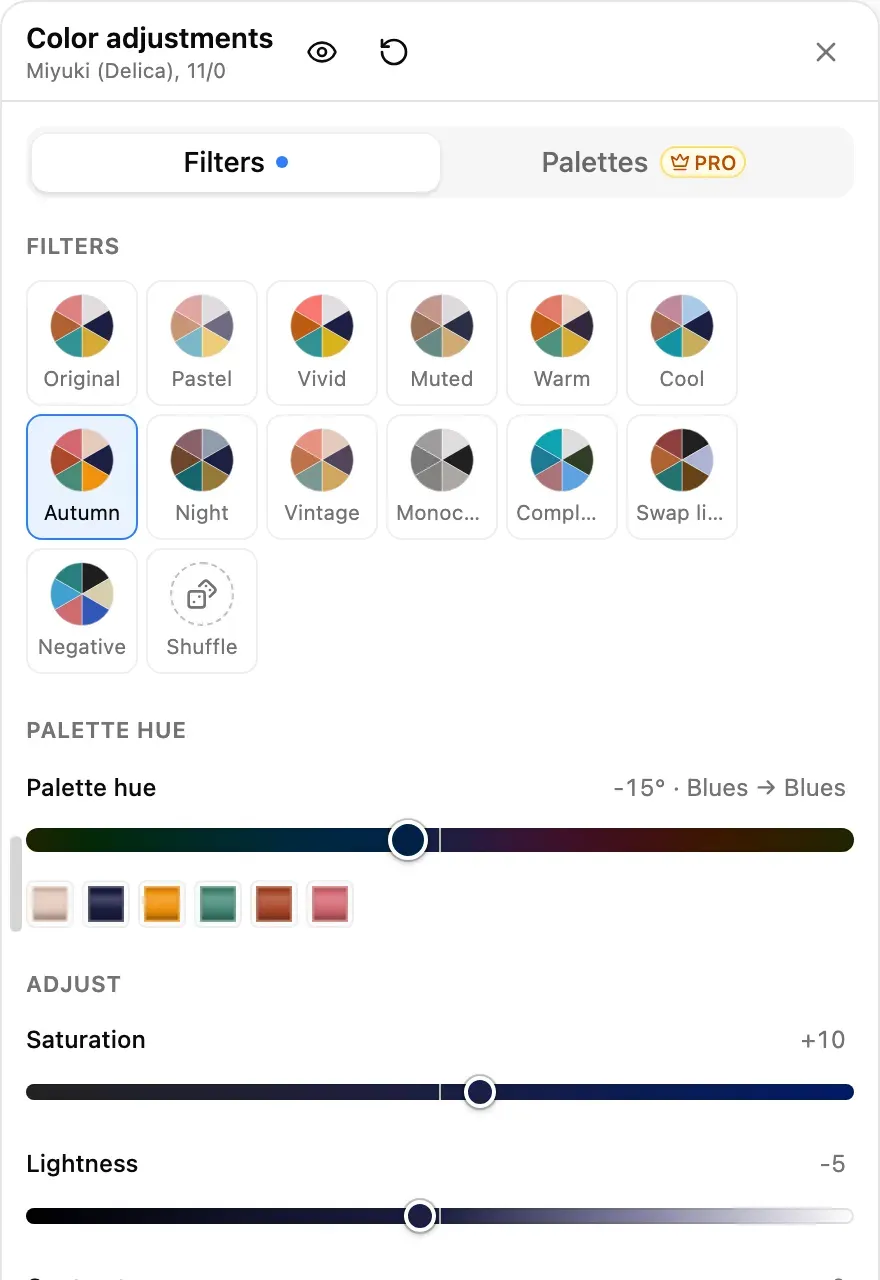
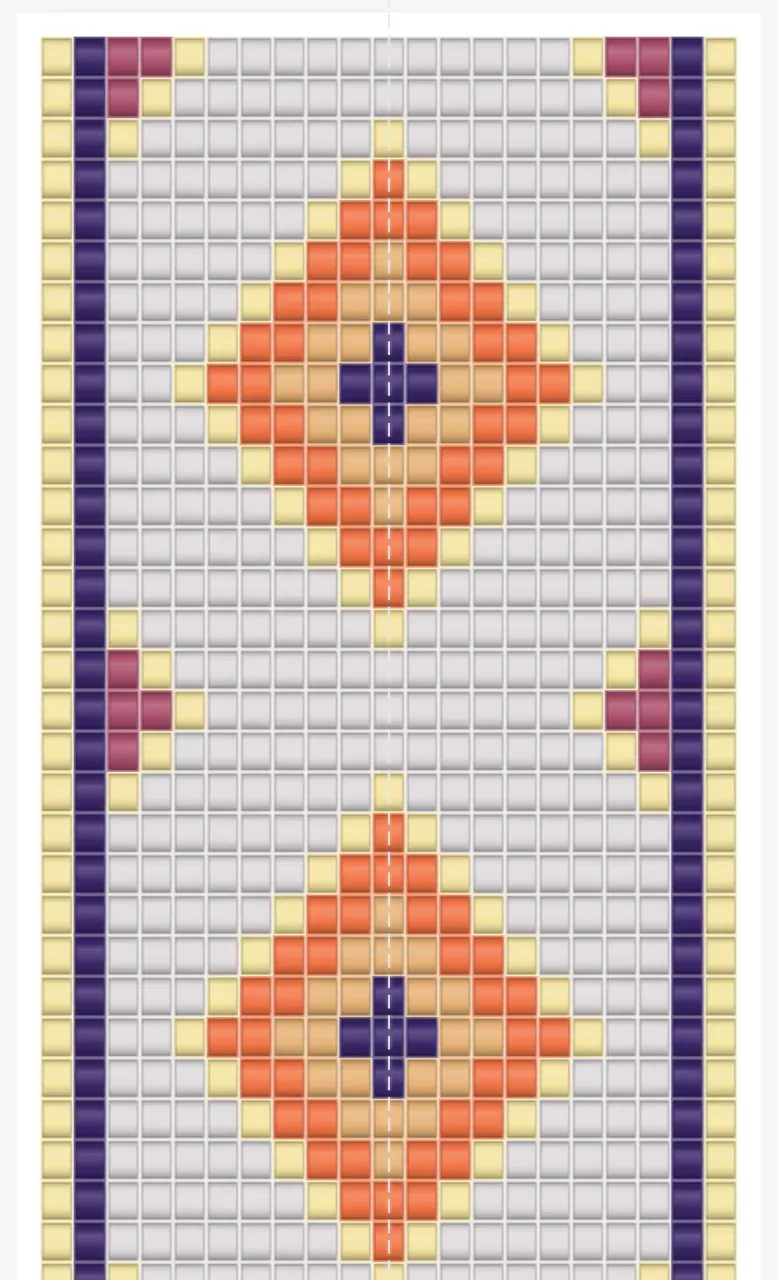
The panel on the Filters tab. Example pattern
Where to find it
Opening the panel
- Desktop and tablet: the sliders button in the small bar under the navigation bar, on the right edge of the workspace.
- Phone: the same button in the palette dock at the bottom of the editor, and in the toolbar's overflow menu.
- Anywhere: the editor's … menu, under Pattern tools, or the keyboard shortcut Alt+Shift+F.
While the panel is open, the pattern is locked so you can't paint on a preview by accident. Pan, zoom and rotate still work, and on a desktop the pattern moves out from under the panel by itself and back when the panel closes.
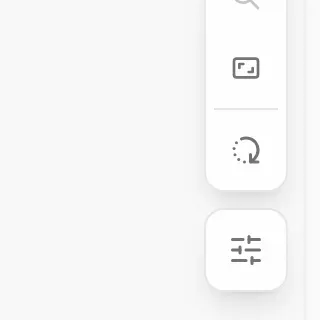
The sliders button, under the navigation bar.
Filters
The filter chips
Each chip is a ready-made look, shown as a small pie of what your pattern's most-used colors would become. Selecting a chip sets the sliders; you can then fine-tune from there.
- Original
Everything back to zero. - Pastel, Vivid, Muted
Softer and lighter, stronger, or greyer. - Warm, Cool
Everything a little redder and yellower, or bluer. - Autumn, Night, Vintage
Three moods: warm and dark, dark and cool, faded and warm. - Monochrome
All the color taken out: greys only. - Complementary
Every color turned to its opposite on the color wheel. - Swap light and dark
Light colors become dark and dark ones light, hues kept. - Negative
A photo negative. - Shuffle
A new random combination on every press.
Sliders
The sliders
| Slider | What it does |
|---|---|
| Palette hue | Turns your whole palette round the color wheel, −180° to +180°. The readout names the color family you move from and to. |
| Saturation | −100 takes all color out; +100 doubles it. |
| Lightness | Towards white or towards black, in proportion: light colors stay lighter than dark ones. |
| Contrast | Spreads the colors apart in lightness, or flattens them, around your palette's average. |
| Warmth | Towards red and yellow, or towards blue. |
| Invert | Off, Light ↔ dark (lightness swapped, hues kept) or Negative (a photo negative). |
Page Up and Page Down move a slider ten steps; the arrow keys move it one. Double-click a slider's readout to put it back to zero.
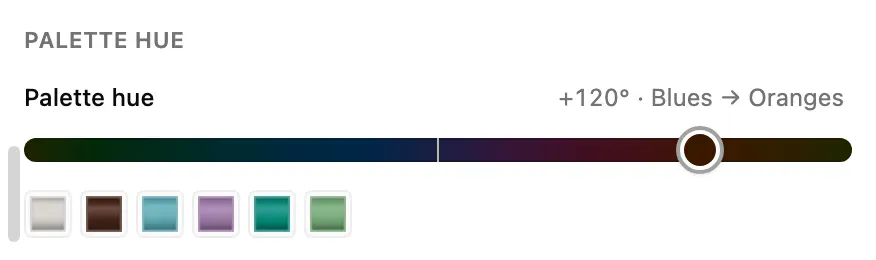
The hue slider's track is your pattern's main color at every angle, and the strip shows what every color has become.
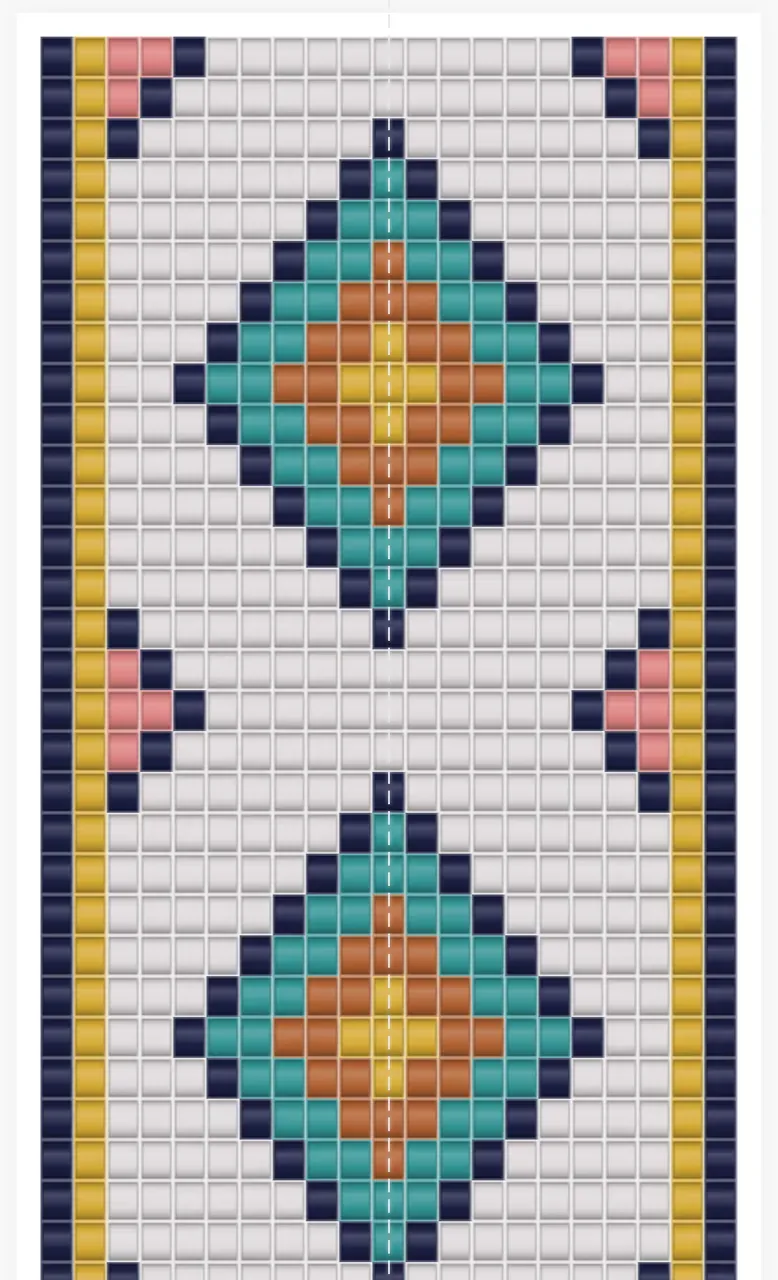
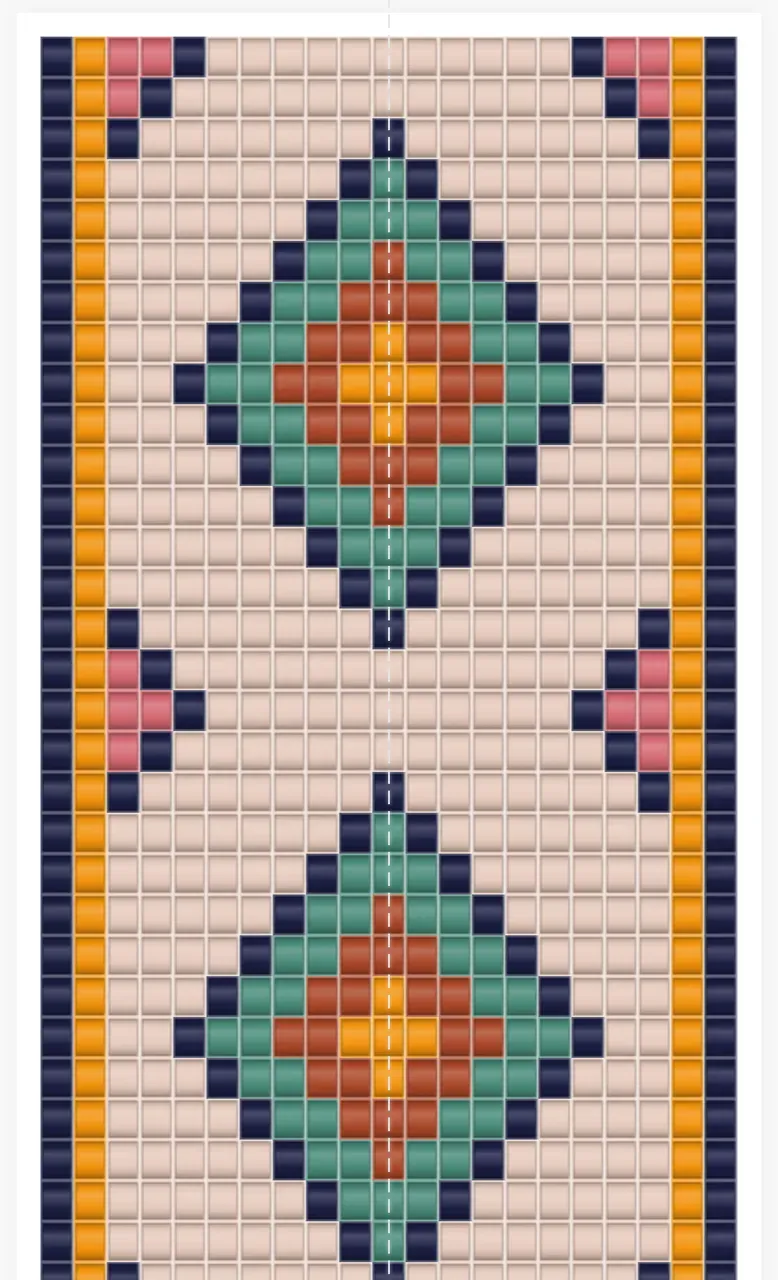
As drawn.
Autumn.
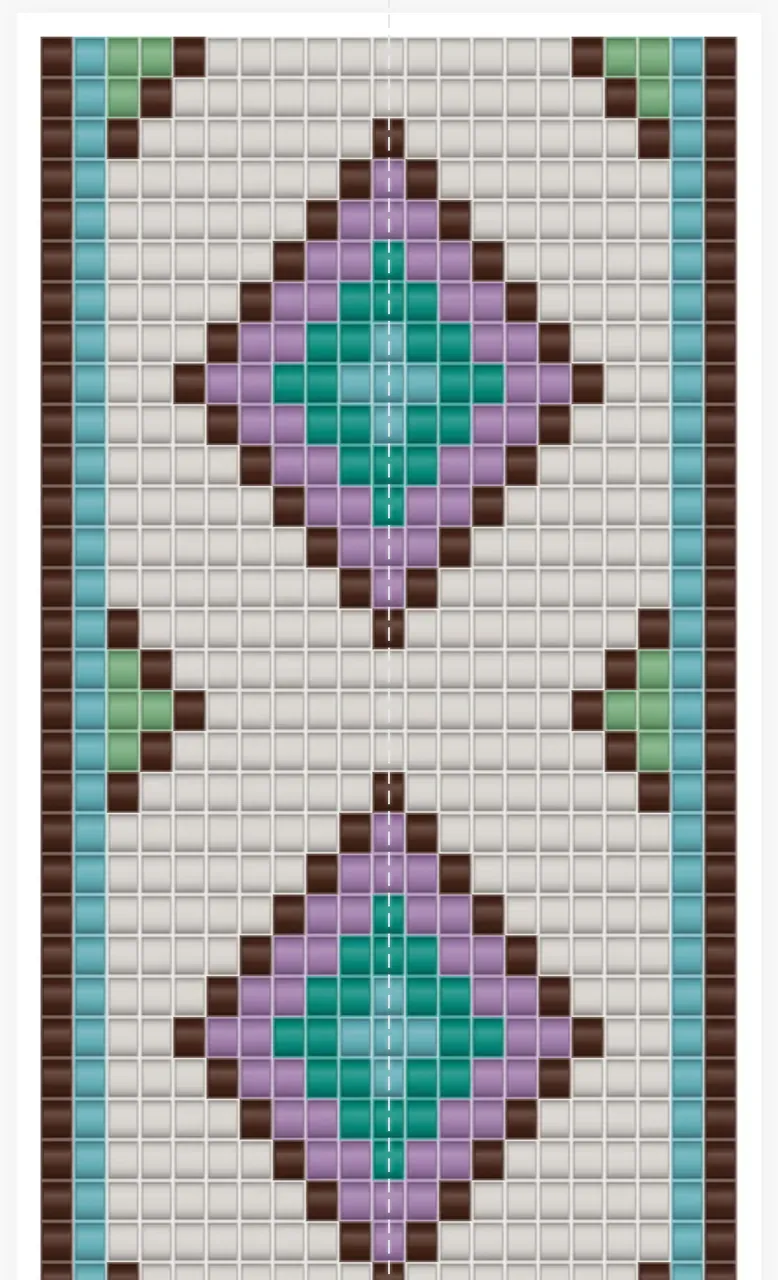
Palette hue +120°.
Palettes
Ready-made palettes
The Palettes tab replaces your pattern's colors outright. There are 58 palettes in four kinds, and the buttons at the top show one kind at a time:
- One hue: ramps from light to dark in a single color family, Reds to Neutrals.
- Blends: a family with its neighbors on the color wheel.
- Contrast: pairs and trios of opposite hues.
- Themes: named combinations such as Sunset, Ocean, Forest, Jewel tones, Nordic and Neon.
A palette is paired to your pattern by lightness: your lightest color takes the palette's lightest, your darkest its darkest, and the design keeps its structure. Swap light and dark turns the pairing round, for a pale motif on a dark ground. The strip at the top of the tab shows the beads your colors have become.
The two tabs work together: with a palette on, the filter chips and sliders move the palette's colors just as they move your own.
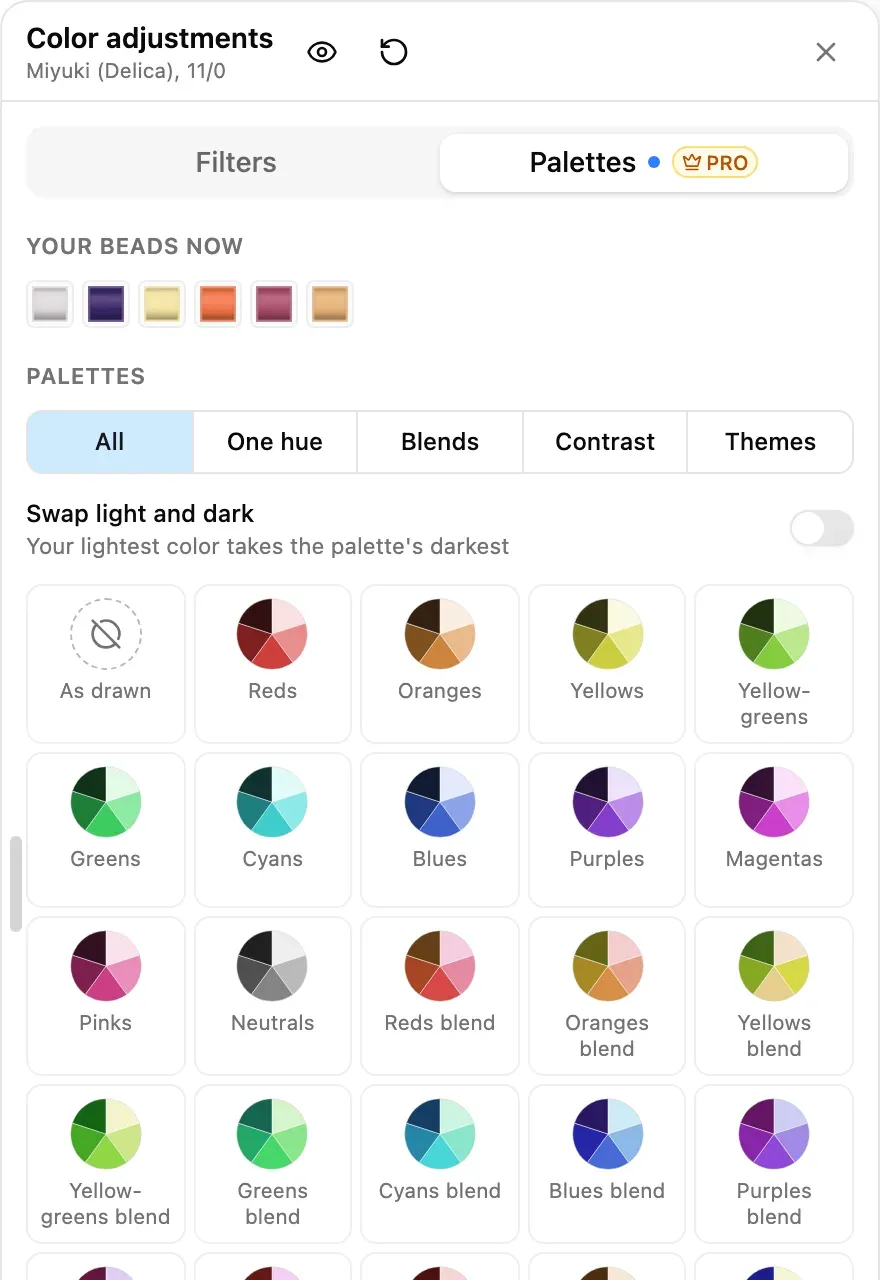
The Palettes tab. The strip at the top shows the beads the Sunset palette gave the pattern.
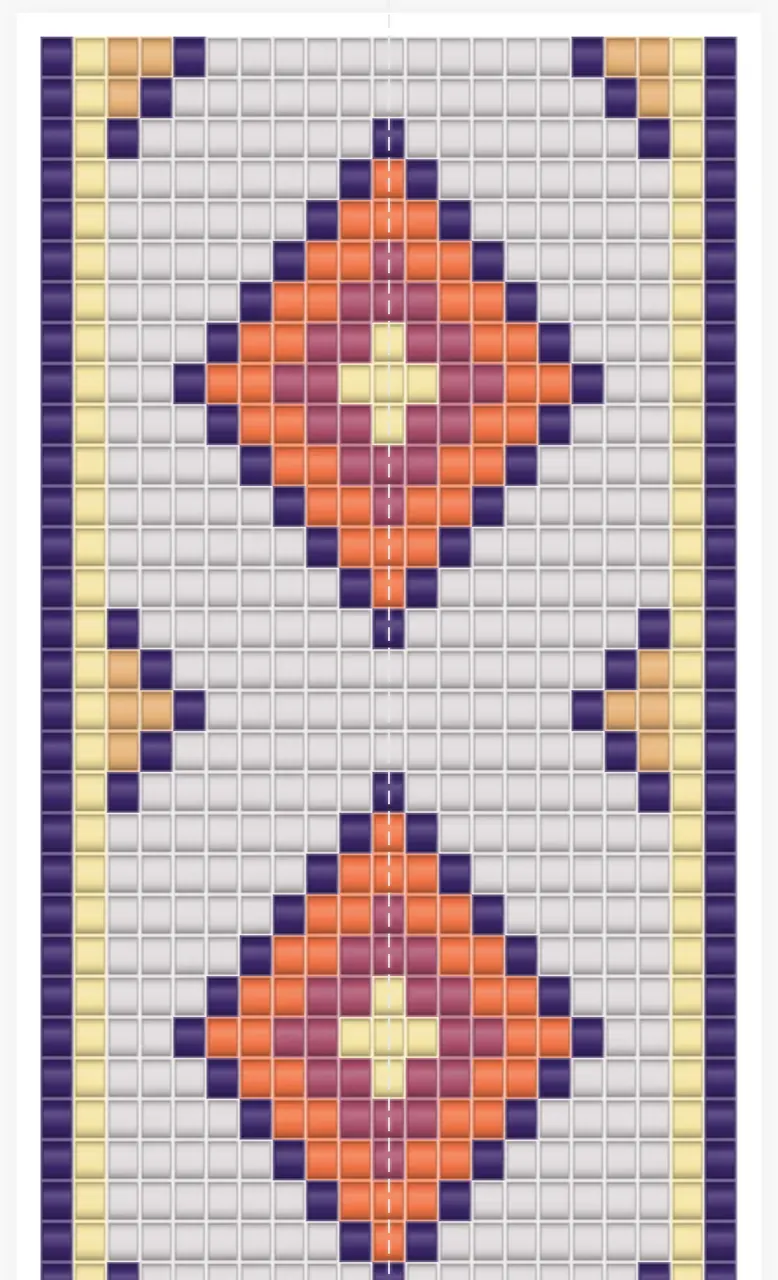
Sunset.
Sunset, light and dark swapped.
Trying and applying a palette
Any plan can try any palette and see it on the pattern. While a palette is on, the Apply button on a Free account reads Apply with Pro and takes you to the plan. Put the palette back to As drawn and Apply returns for the filters. If your account can still start the free trial, the notice at the top of the tab says so.
Beads
Choosing which beads are used
Every adjusted color becomes a real bead of your project's bead type and size, chosen by how close it looks. The Beads section decides which beads are allowed:
- Snap to
All beads, your favorites, or the beads in the project palette. A source with no beads of this type and size yet is greyed out, with the reason under it. - Keep colors distinct
On, each color gets a bead of its own where the beads allow, so seven colors stay seven beads. Off, colors may share a bead when they land close together.
The Result list shows every color of the pattern, the bead it becomes, and how many beads that is. Two colors that end on the same bead are marked as merged.
- Lock a color with the padlock on its row to keep it exactly as drawn. Nothing else may take its bead while colors are kept distinct. Lock the background and recolor only the motif.
- The summary line, for example 6 colors → 6 beads, tells you at a glance whether anything merged.
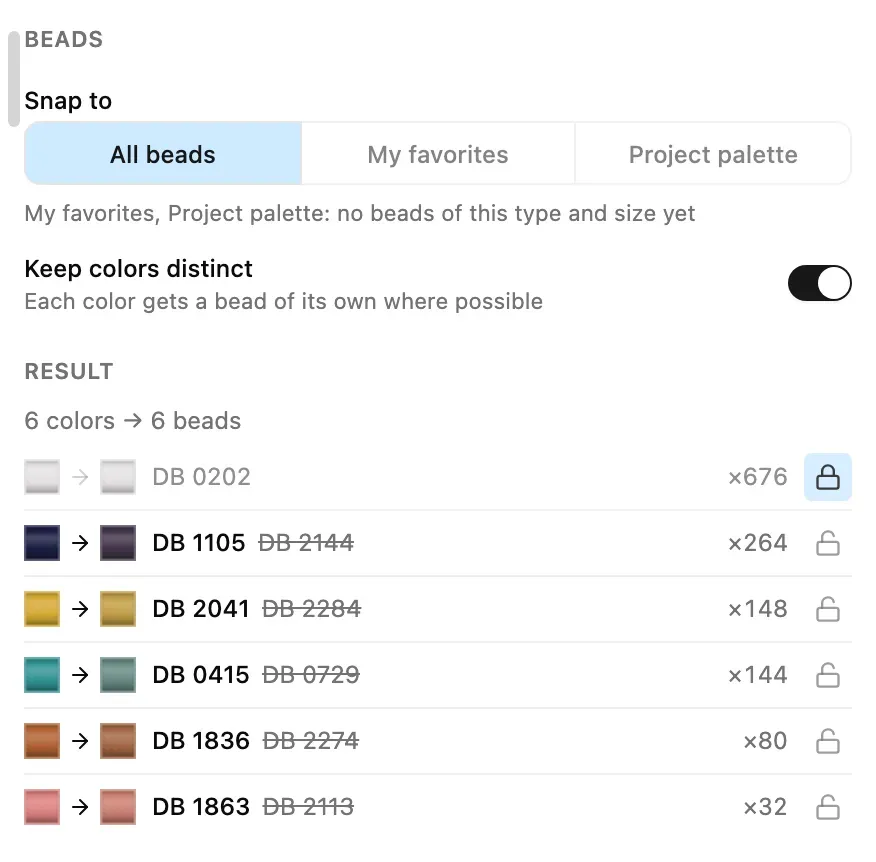
The cream ground is locked; the other five colors have new beads.
Patterns in plain colors
A pattern drawn in plain colors rather than a bead catalog has no beads to snap to: the sliders move its colors freely and the Beads section is not shown. A color that did not move keeps exactly the value it had.
Finishing
Compare, reset, apply
| To… | Do this |
|---|---|
| See the pattern as drawn for a moment | Hold the eye button in the panel's header. |
| Put every setting back | Select the arrow button next to it; locks and the bead source stay. |
| Keep the new colors | Select Apply. The colors are written as one edit. |
| Change your mind after Apply | Undo (Ctrl+Z or Cmd+Z) takes back the colors, and with them your project palette and the color you are drawing with. |
| Leave without changing anything | Select Cancel, press Escape, or close the panel. |
Apply changes only the color of each bead: no bead is added or removed, blank cells stay blank, and the shape of the pattern is untouched. After Apply, your project palette lists the new beads and the color you draw with has followed its bead, so the next bead you paint matches the new look.
Phones and tablets
On a phone or tablet
- Phone: the panel is a sheet from the bottom of the screen. Drag its handle up for the whole panel or down to see more of the pattern; the sliders move under your finger without moving the sheet.
- Tablet held upright: the sheet is wide enough for two columns, with the filters beside the sliders.
- Tablet held sideways, and desktop: the panel docks to the right edge and the pattern steps aside so nothing is hidden under it.
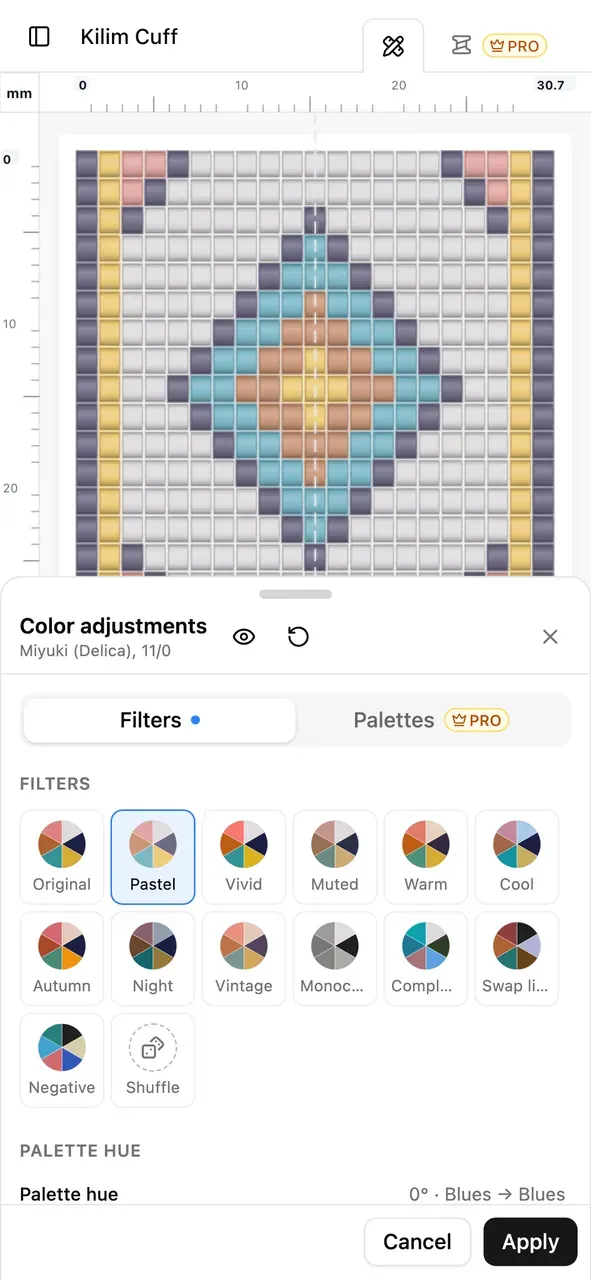
The Pastel filter on a phone.
Good to know
Tips
- Start from a filter, then fine-tune. The chips set all the sliders at once; a small move of Warmth or Lightness afterwards is often all a look needs.
- Lock what must stay. A locked color is never replaced, by a filter or a palette, and the palette is sized to the colors that are left.
- Use the hue slider for a quick colorway. Turning the palette keeps every relationship between your colors and gives you a new colorway in one move.
- Check the result list before you apply. It names every bead your pattern will use, with counts, so you can see what you would need to buy.
- Craft mode and Color adjustments don't mix. Leave Craft mode to recolor a pattern; a pattern locked by the plan can be looked at but not recolored.
Comentarios
Inicia sesión para unirte a la conversación.
Aún no hay comentarios. Empieza la conversación.