Color adjustments: see your pattern in other colors
What's new in Beadloo
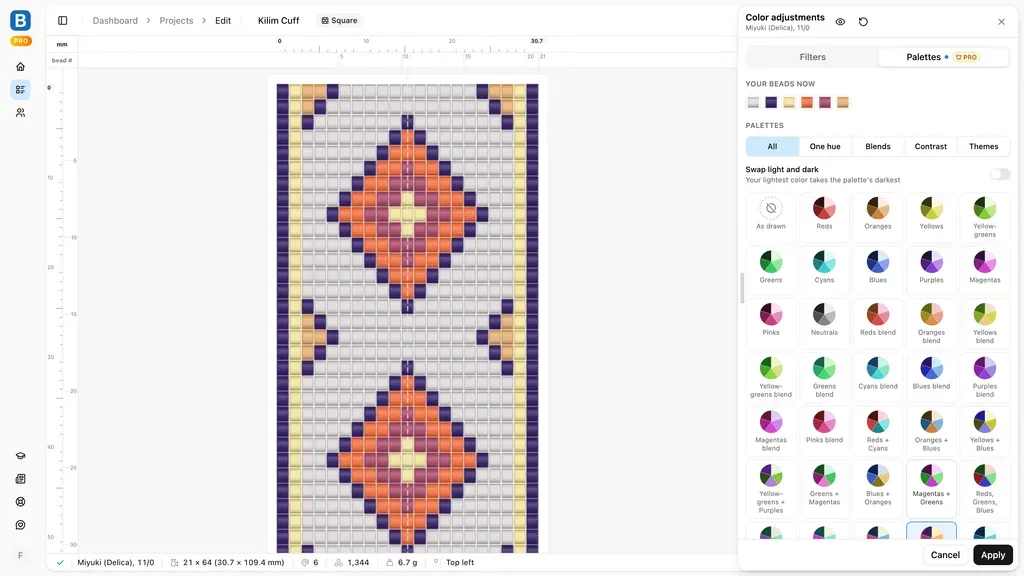
Meet Color adjustments: see your whole pattern in other colors before you change a single bead. Open a pattern, pick a filter or a ready-made palette, and Beadloo shows the result on the canvas as you go, with every color matched to a real bead of your bead type. Like it? Apply it as one edit. Don't? Cancel, and your pattern is exactly as it was.
- 13 filters and a shuffle
- Hue, saturation, lightness, contrast, warmth
- 58 ready-made palettes
- Every color a real bead
- Lock the colors you keep
- One undo step
In this update
What's new at a glance
- Try it before you change anything
The canvas shows the recolored pattern live; nothing is saved until you press Apply. - Filters
Pastel, Vivid, Autumn, Night, Negative and more, each previewed on your own colors. - Turn the palette hue
Slide your whole palette round the color wheel and watch the beads follow. - Ready-made palettes
58 combinations, from single hues to themes like Sunset and Ocean, paired to your pattern by lightness. - Real beads, your choice of beads
Snap to all beads, your favorites or the project palette, and lock any color you want to keep. - Apply, undo, compare
One edit, one undo, and an eye button to peek at the pattern as drawn. - On phones and tablets
A bottom sheet on phones, two columns on a tablet, and the pattern steps aside for the panel.
Filters for everyone, palettes with Pro
The filters and sliders are on every plan, and on the public demo. The ready-made palettes can be tried by everyone; applying one to your pattern is part of Beadloo Pro and the free Pro trial.
Getting started
Try it before you change anything
- Open a pattern
Any pattern with beads in it. - Select Color adjustments
The sliders button under the navigation bar on the right, or press Alt+Shift+F. - Pick a filter, move a slider, choose a palette
The pattern on the canvas changes as you do. The pattern itself has not. - Apply, or Cancel
Apply writes the new colors as one edit you can undo. Cancel puts everything back.
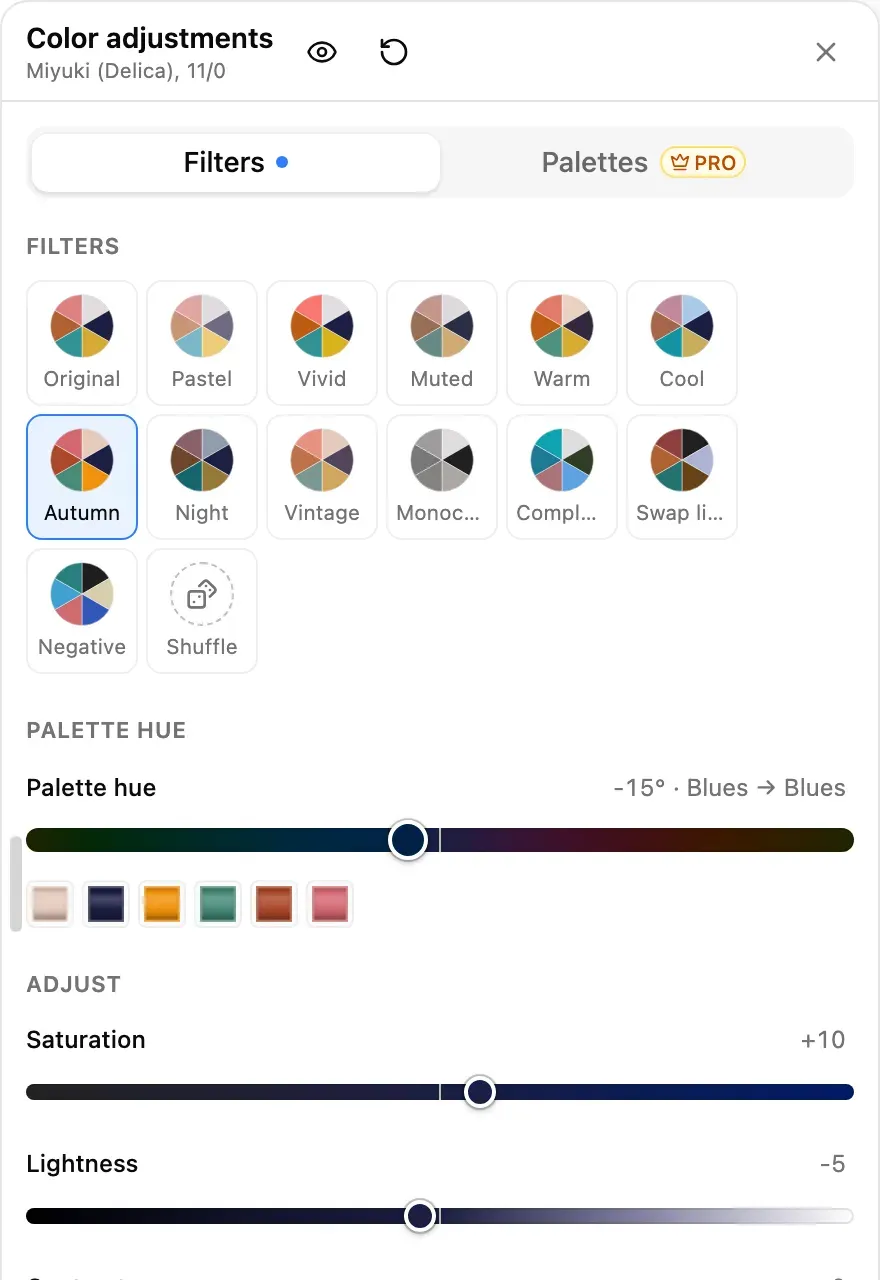
The panel opens beside your pattern. Here the Autumn filter is on.
While the panel is open the pattern is locked, so you can't paint on a preview by accident. You can still pan and zoom, and on a desktop the pattern moves out from under the panel by itself.
Filters
Filters
The Filters tab holds thirteen ready-made looks, each shown as a small pie of what your pattern's colors would become: Pastel, Vivid, Muted, Warm, Cool, Autumn, Night, Vintage, Monochrome, Complementary, Swap light and dark, Negative, and a Shuffle that rolls a new combination on every press. Pick one and then fine-tune it with the sliders underneath: Saturation, Lightness, Contrast and Warmth, plus an Invert switch for a light-for-dark swap or a full negative.
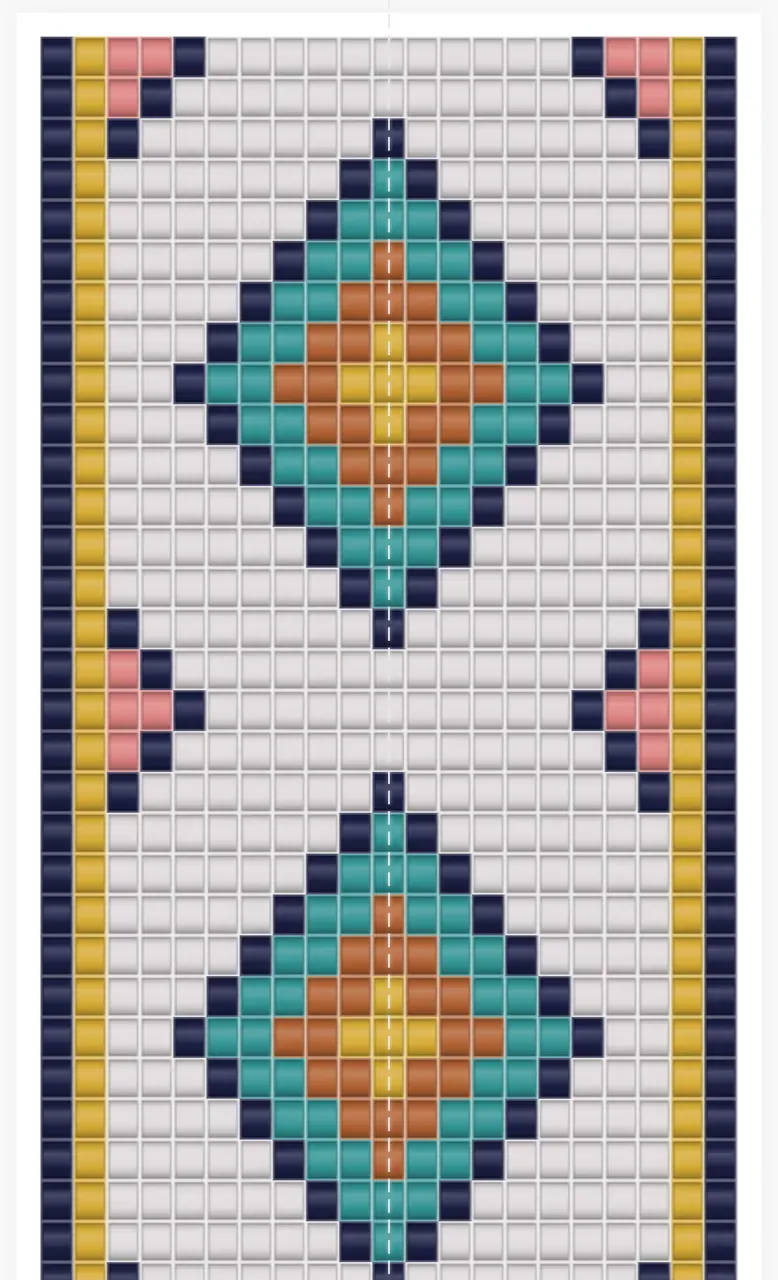
As drawn.
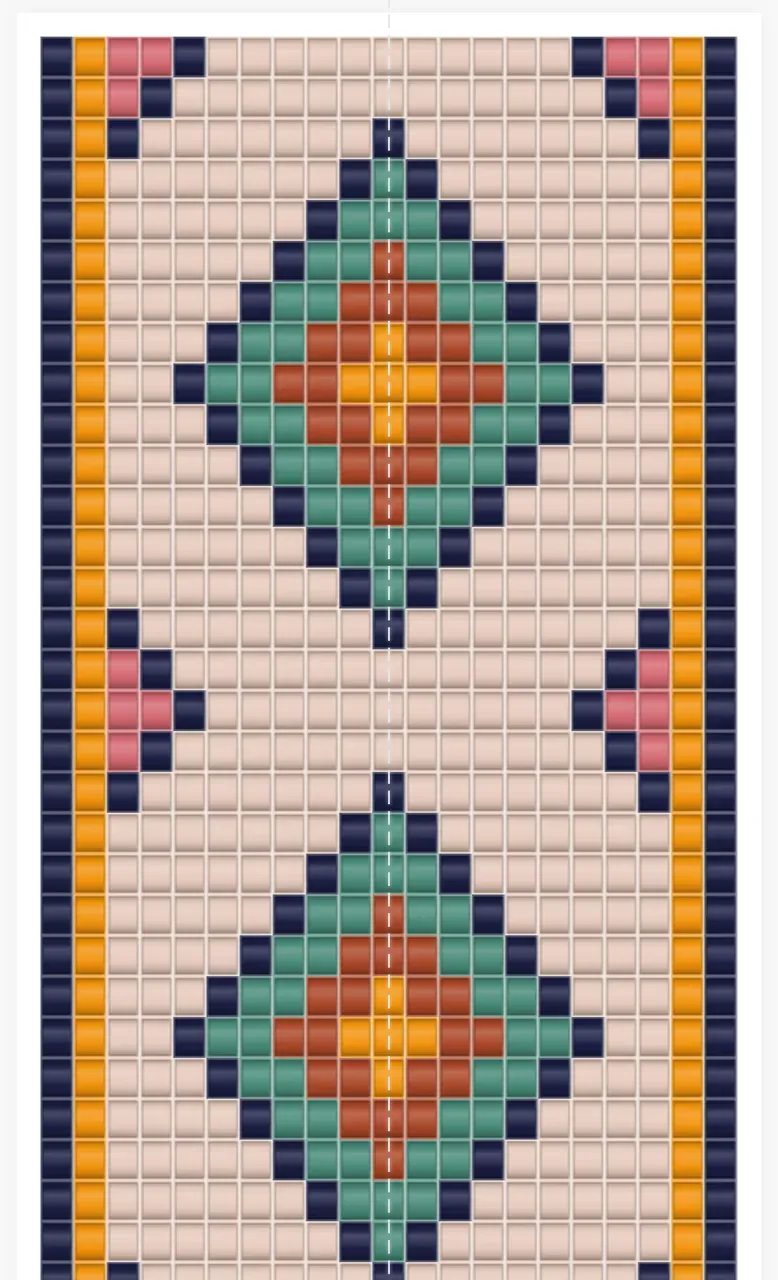
Autumn.
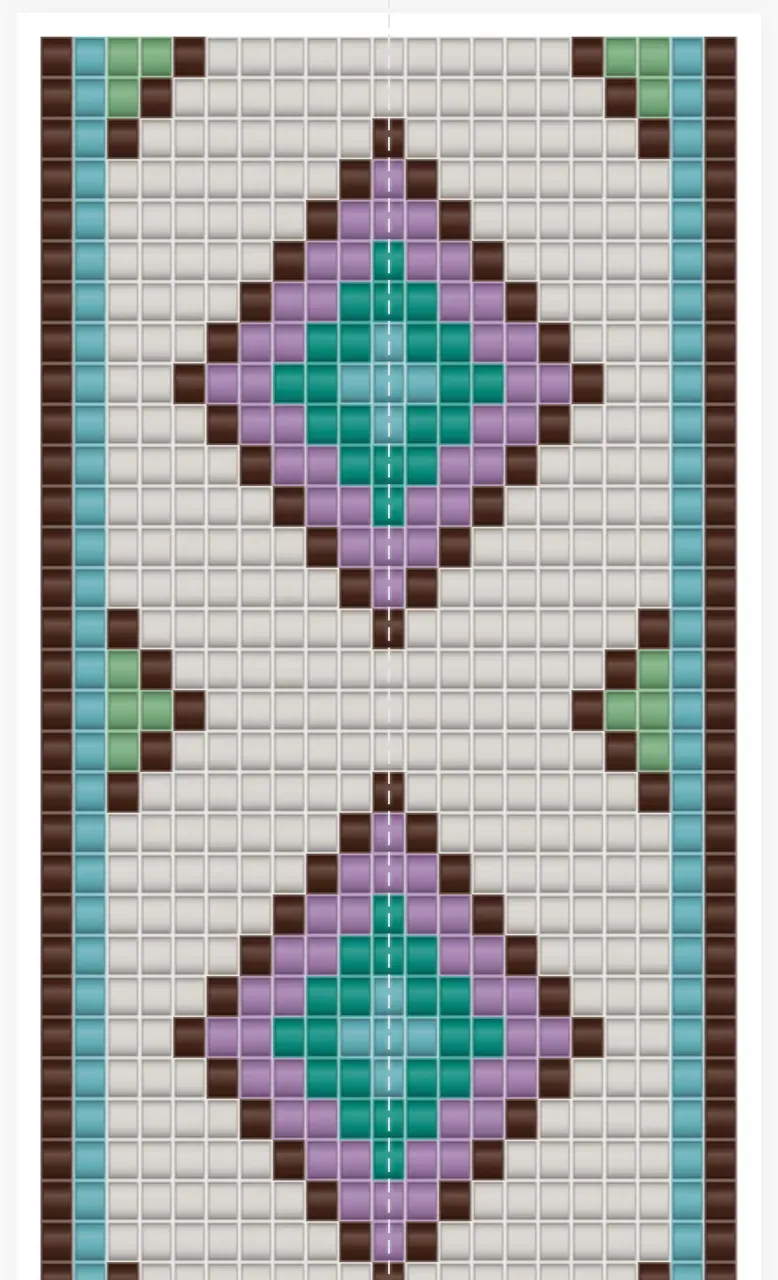
Palette hue +120°.
Everything works in real color space, so a slider moves every color of your palette by the same amount and the relationships between them survive: a dark motif on a pale ground stays a dark motif on a pale ground.
Hue
Turn the palette hue
The Palette hue slider slides your whole palette round the color wheel. Its track is painted with your pattern's main color at every angle, the readout tells you which color family you are moving from and to, and the strip of beads under it shows what every color has become. Ten degrees per Page Up or Page Down; double-click the readout to go back to zero.
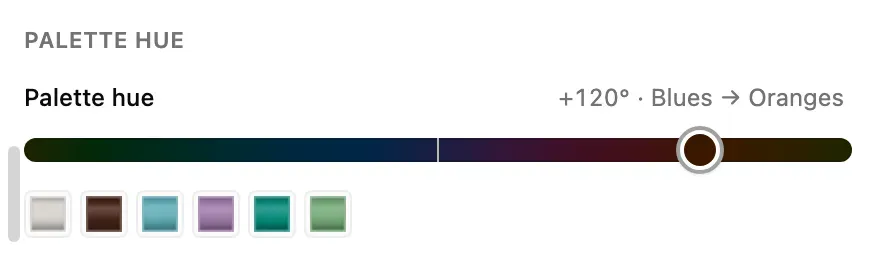
The slider's track is your own color, turned through every angle.
Palettes
Ready-made palettes
The Palettes tab replaces your pattern's colors outright with one of 58 combinations: single hues from Reds to Neutrals, blends of neighboring hues, contrast pairs and trios, and named themes such as Sunset, Ocean, Forest, Jewel tones and Nordic. Filter them by kind with the buttons at the top.
A palette is paired to your pattern by lightness: your lightest color takes the palette's lightest, and so on down, so the design keeps its structure. Swap light and dark turns that round. Choose a palette and then reach for the filters too; they move the palette's colors just as they move your own.
Try any palette, apply it with Pro
Every palette can be tried on your pattern on any plan. When one is on, the Apply button becomes Apply with Pro, which takes you to the plan. On a Free account that can still start the trial, the tab says so.
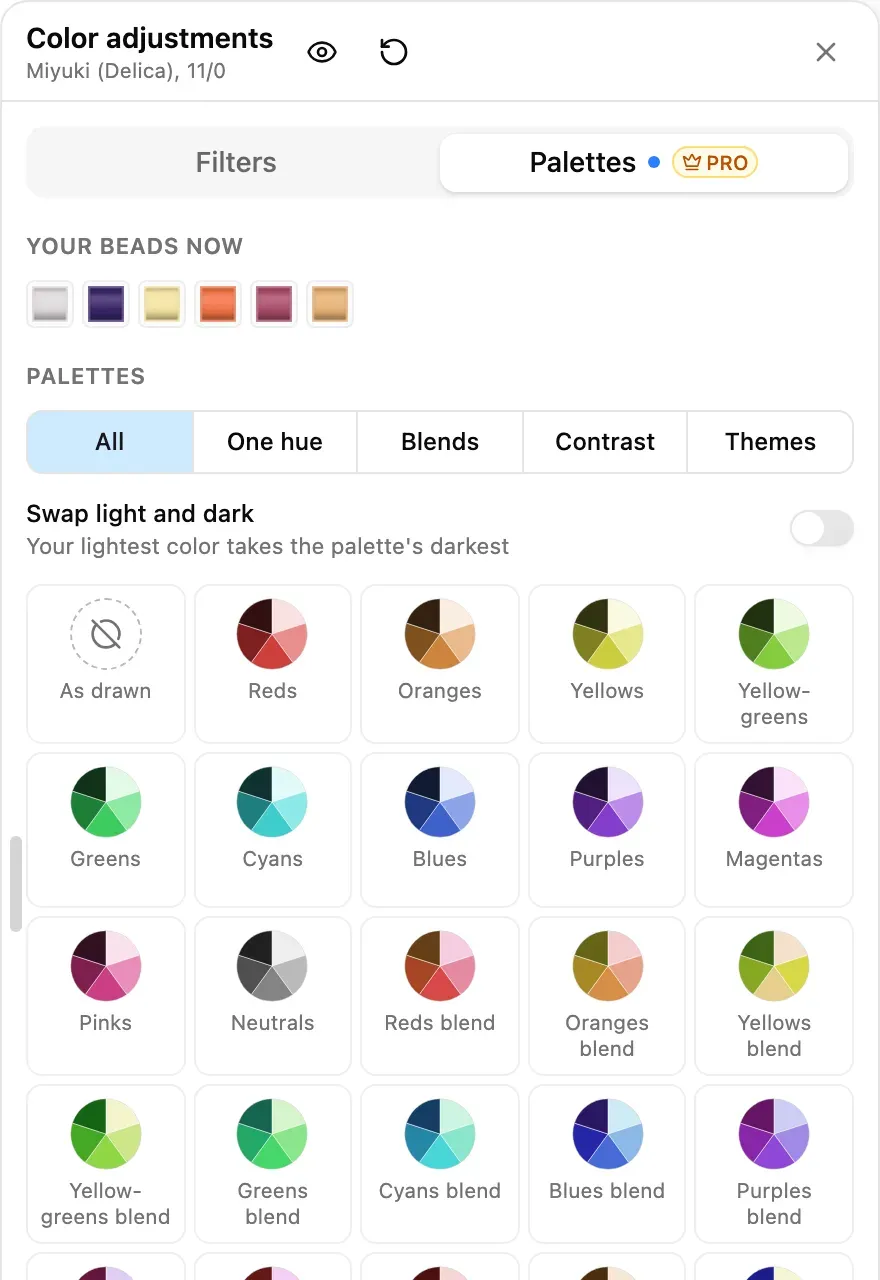
The Palettes tab. The strip at the top shows the beads the Sunset palette gave the pattern.
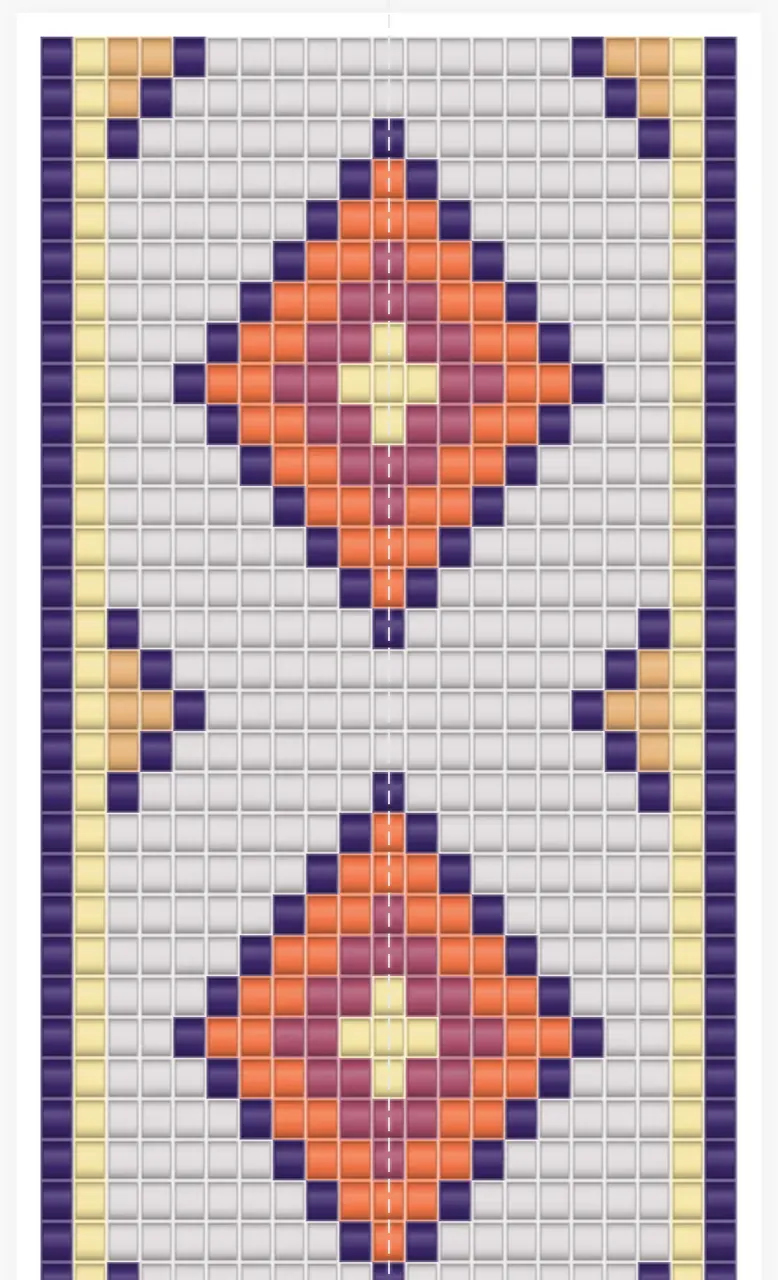
Sunset.
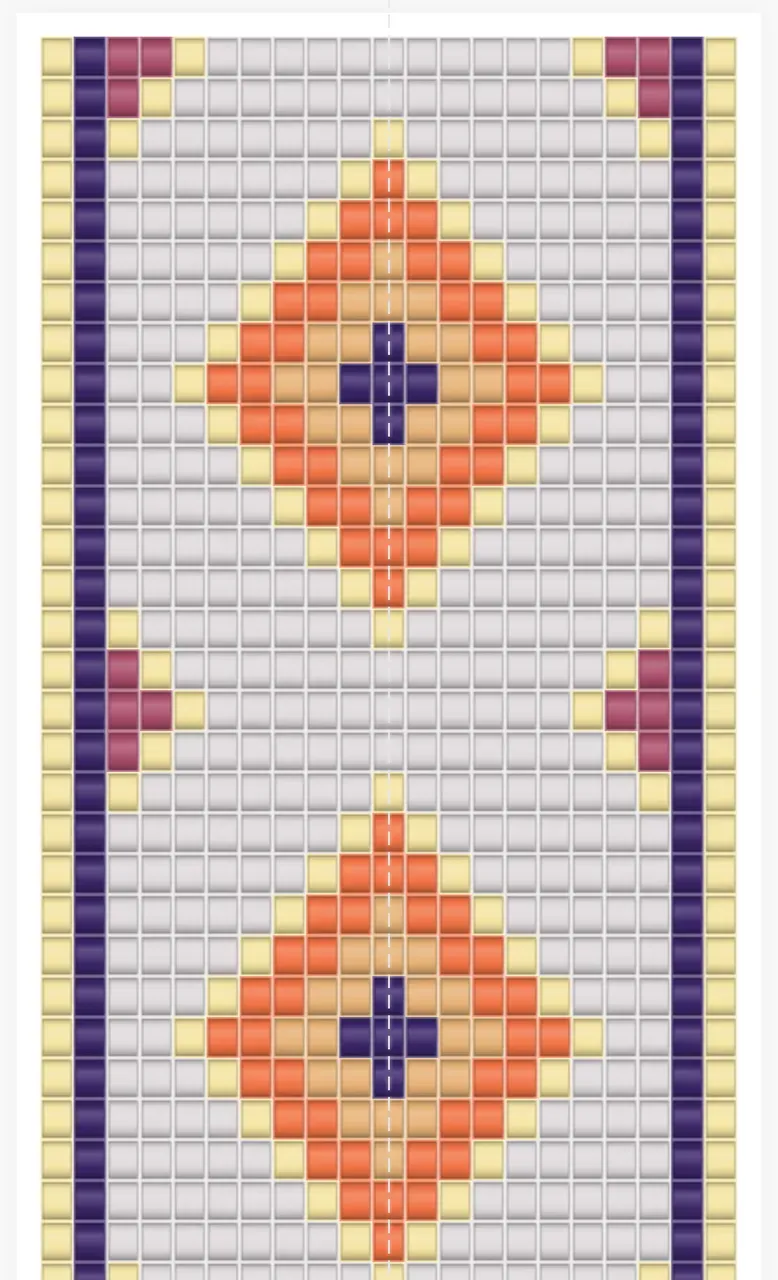
Sunset, light and dark swapped.
Beads
Real beads, your choice of beads
Every adjusted color becomes a real bead of your project's bead type and size, chosen by how close it looks, not by its number. Under the sliders you decide which beads are allowed:
- Snap to
All beads, your favorites, or the beads in the project palette. - Keep colors distinct
Each color gets a bead of its own where the beads allow, so seven colors stay seven beads. Off, colors may share a bead, and the result says which ones do. - Locks
The result list shows every color, what it becomes and how many beads that is. Lock a color to keep it exactly as drawn; nothing else may take its bead.
Patterns drawn in plain colors rather than a bead catalog keep plain colors: the sliders move them and nothing is snapped.
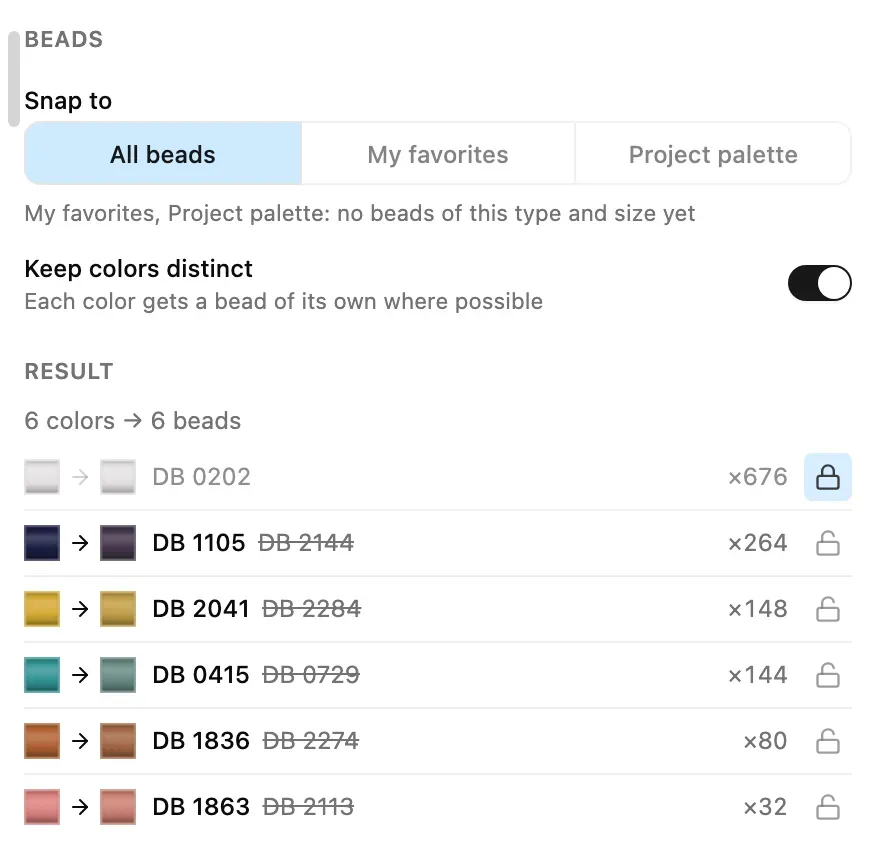
The result list, with the cream ground locked.
Apply
Apply, undo, compare
- Apply writes the new colors into your pattern as one edit. Your project palette and the color you are drawing with follow along, and one undo takes all of it back.
- Cancel, Escape or closing the panel leave the pattern exactly as it was.
- Hold the eye button in the panel's header to see the pattern as drawn while you decide; the arrow button next to it puts every setting back.
Apply never drops a bead or changes a shape: it only changes which color each bead is. Blank cells stay blank.
Phones and tablets
On phones and tablets
On a phone, Color adjustments opens as a sheet from the bottom of the screen. Drag it up for the whole panel or down to see more of your pattern; the sliders answer to your finger without moving the sheet. On a tablet held upright the sheet is wide enough for two columns, with the filters beside the sliders. Held sideways, and on a desktop, the panel docks to the right and the pattern steps aside so nothing hides under it.
Find it in the palette dock at the bottom of the phone editor, and in the toolbar's overflow menu.
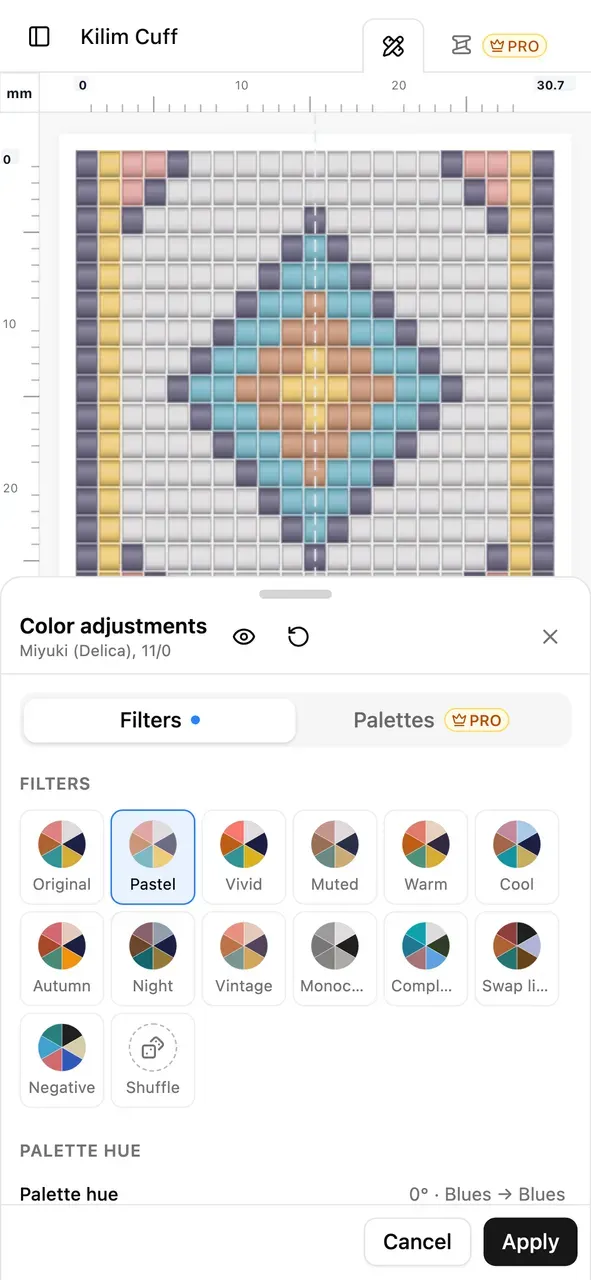
The Pastel filter on a phone.
Also in this update
Smaller improvements
- Color adjustments has a small bar of its own under the navigation bar on the right, so the Tools bar and the project palette under it are exactly as they were.
- Sliders inside a side panel now answer to a finger without dragging the panel away, in Color adjustments and in Color combinations alike.
- Press Alt+Shift+F in the editor to open Color adjustments from the keyboard.
Try it now
Open any pattern and select the sliders button under the navigation bar. We'd love to see what you make of your patterns in other colors.
Comentarios
Inicia sesión para unirte a la conversación.
Aún no hay comentarios. Empieza la conversación.